
Upload a file.
Collaboration begins.
Files, comments, chat, calendars, email and AI — all in the same workspace.
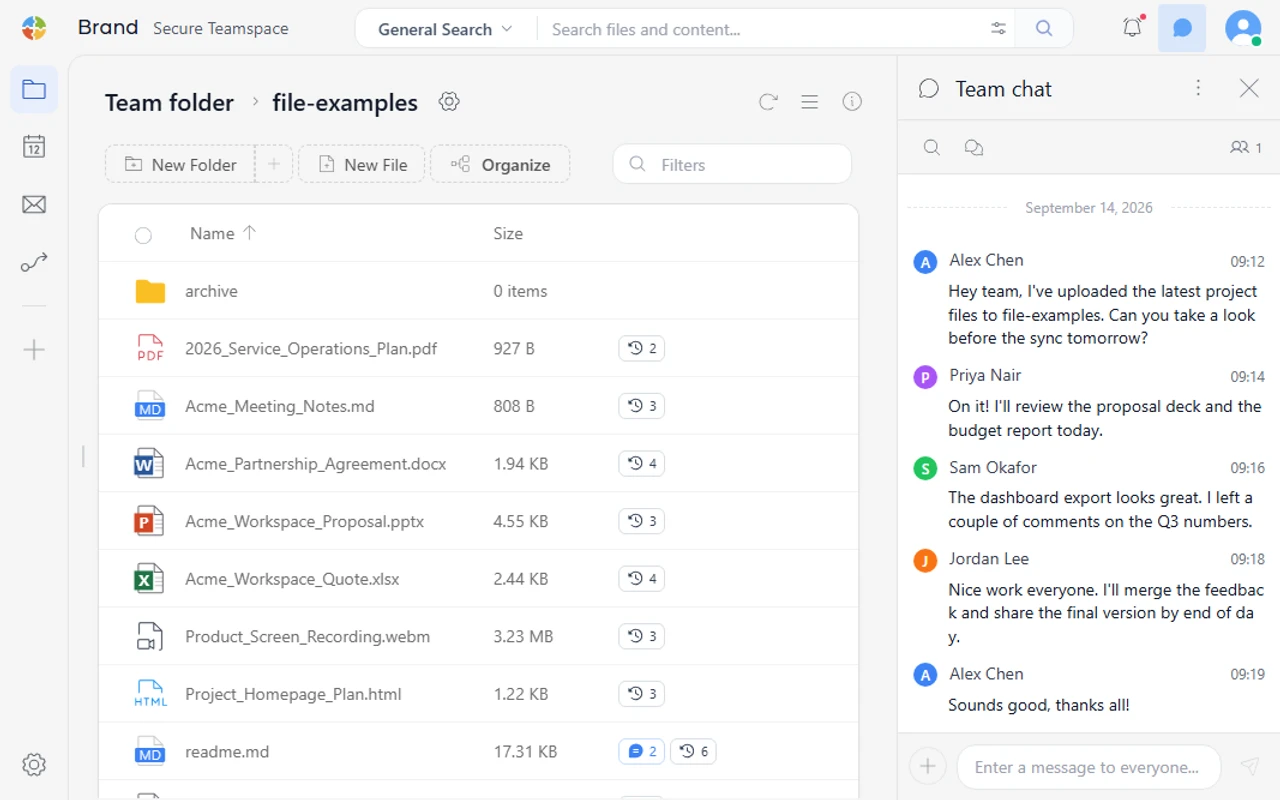
The folders you know, with everything you need to organize, find and share files—and work together.
File management
Open the formats you use every day, rename files and track changes right where they live.
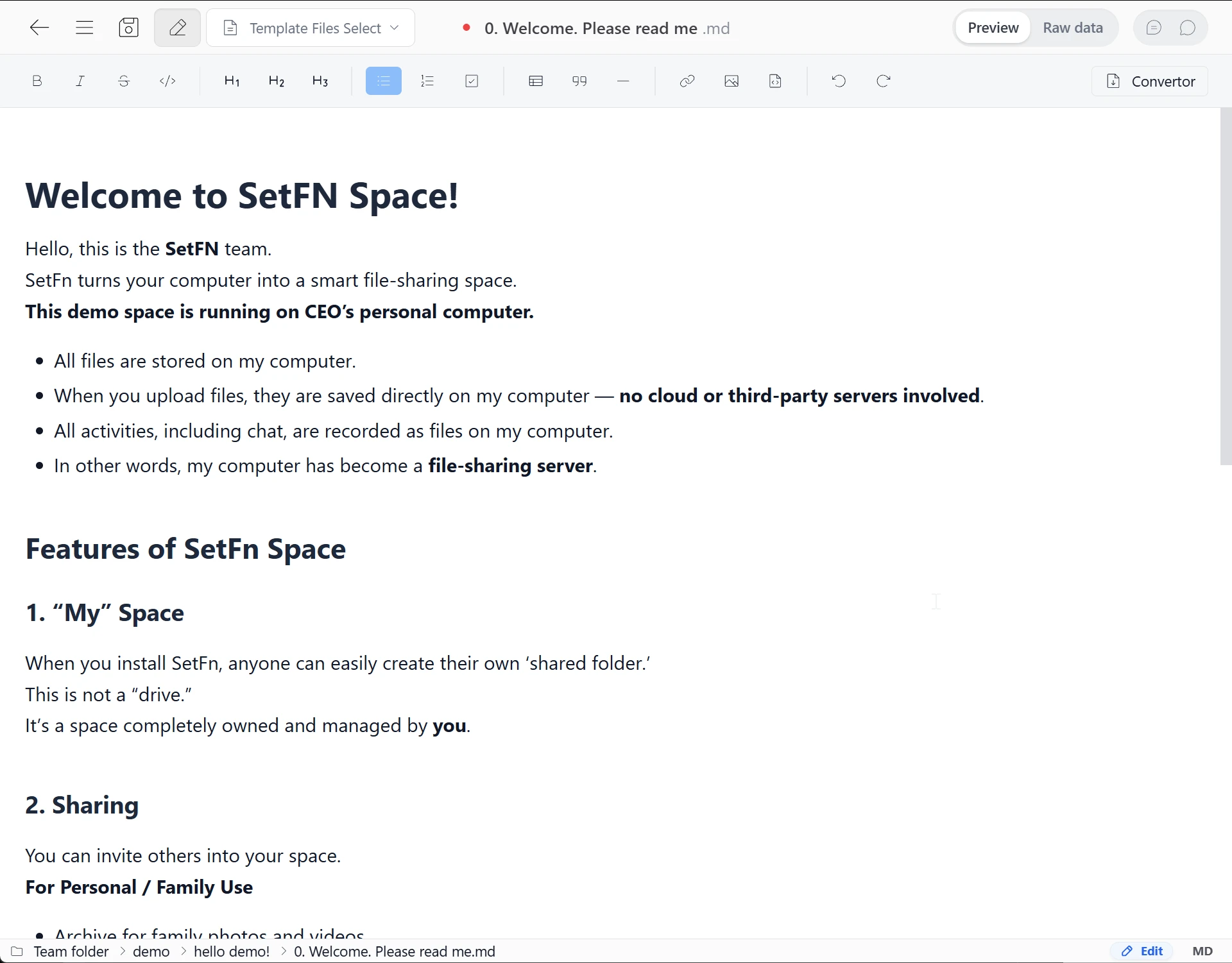
Markdown, HTML and text editors
Open and edit MD, HTML and TXT files directly, without another app.
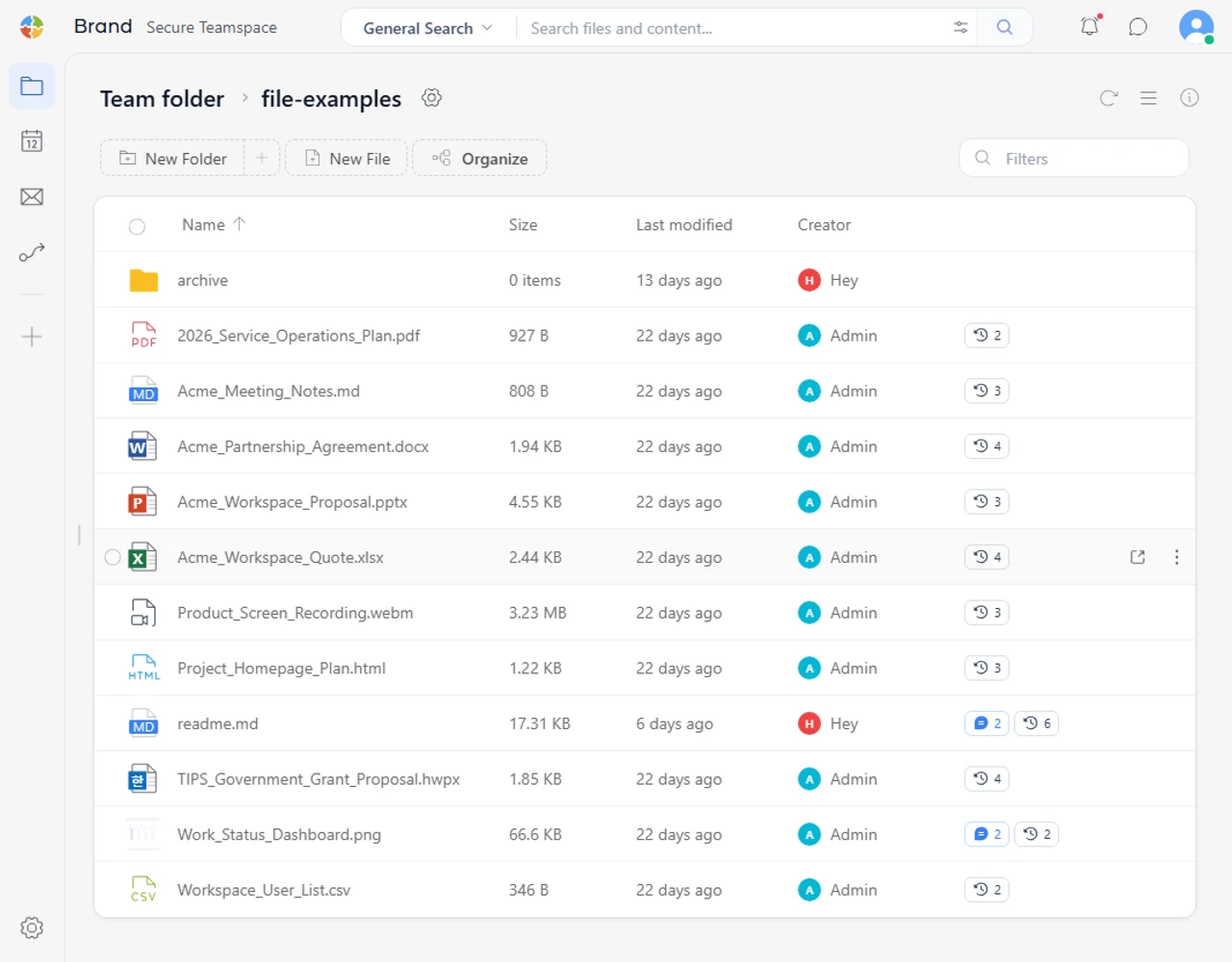
More formats, one workspace
Work with documents, spreadsheets, presentations, images and videos supported by your installed viewers and conversion engines.
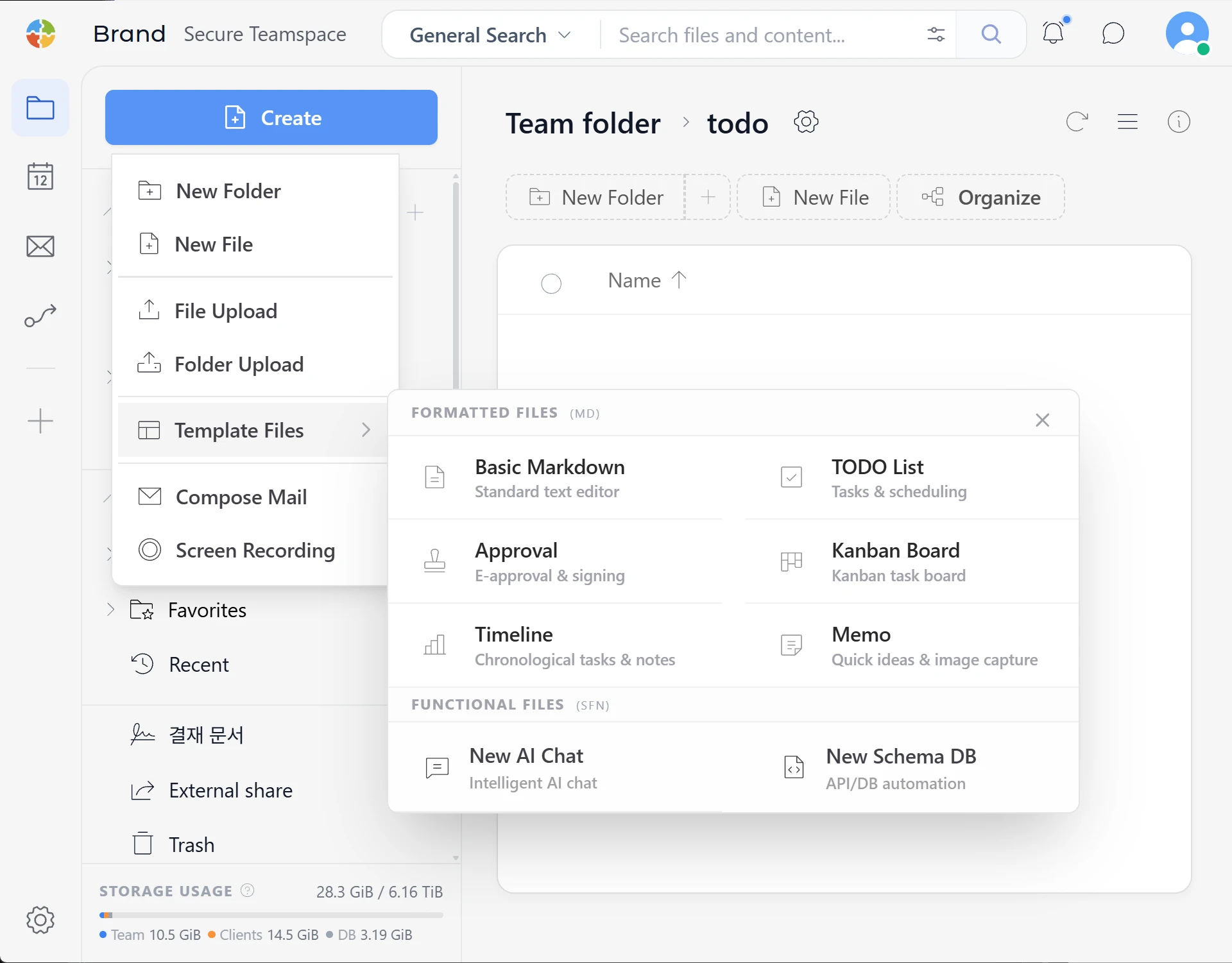
Templates for everyday work
Start with to-do lists, Kanban boards, timelines and approval forms. Built on Markdown, they stay reusable files you can keep and adapt.
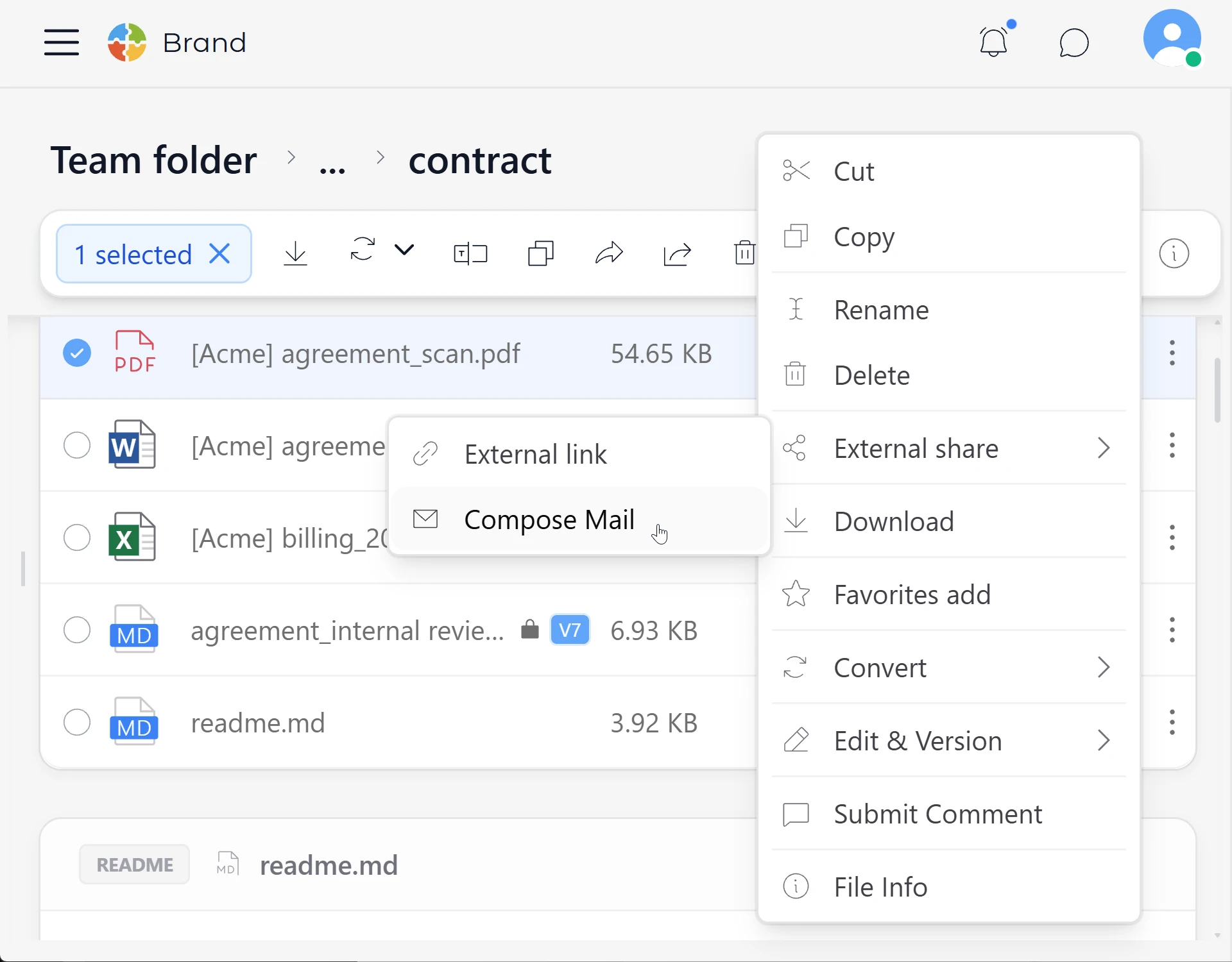
Take the next step, right from a file
Leave a comment, check version history, create a share link or attach a file to an email, right where you are reviewing it.
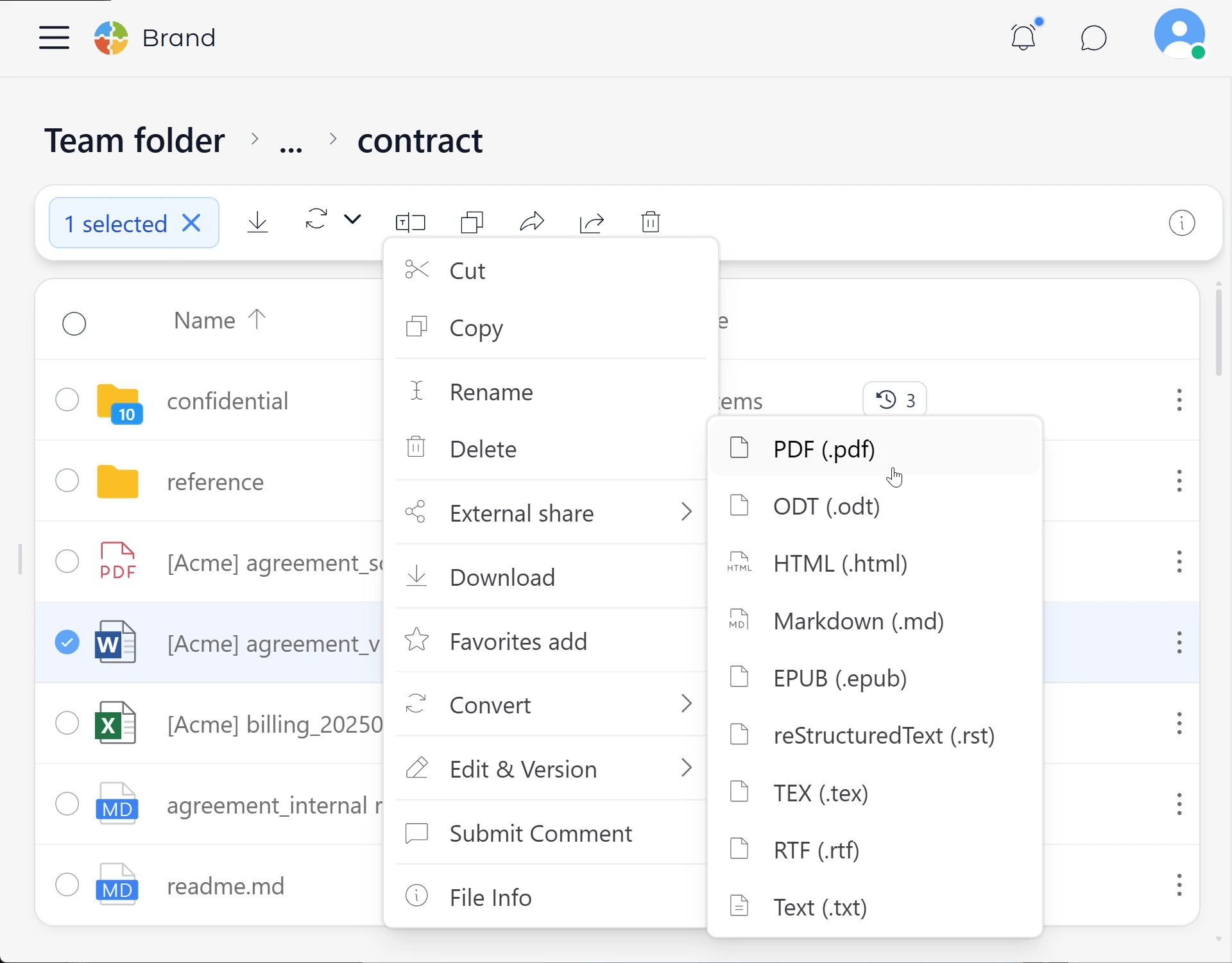
Convert files in place
Convert PDF, document and image formats supported by your installed conversion engines. Keep the originals and results in the same folder.
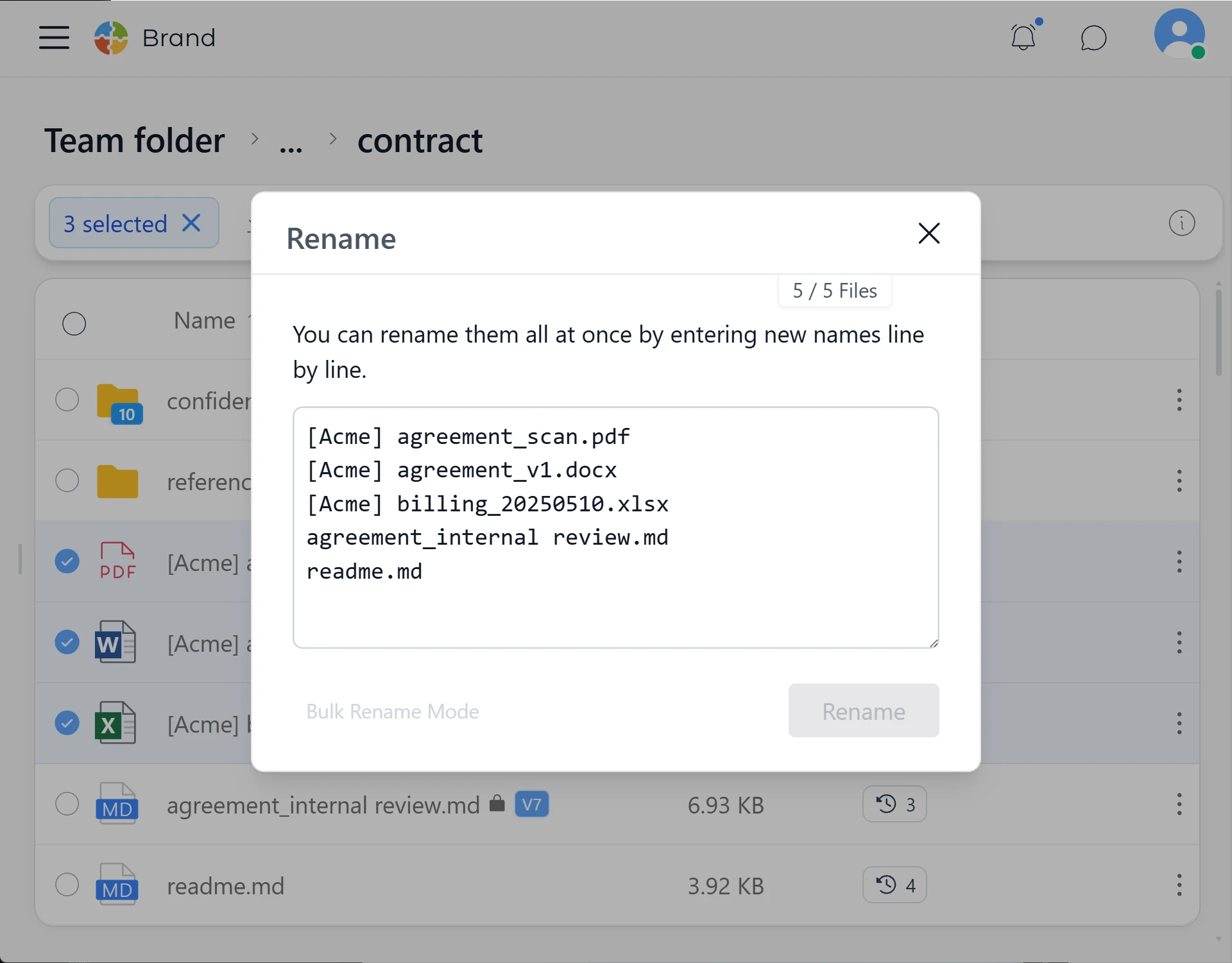
Rename in bulk
Change multiple file names at once.
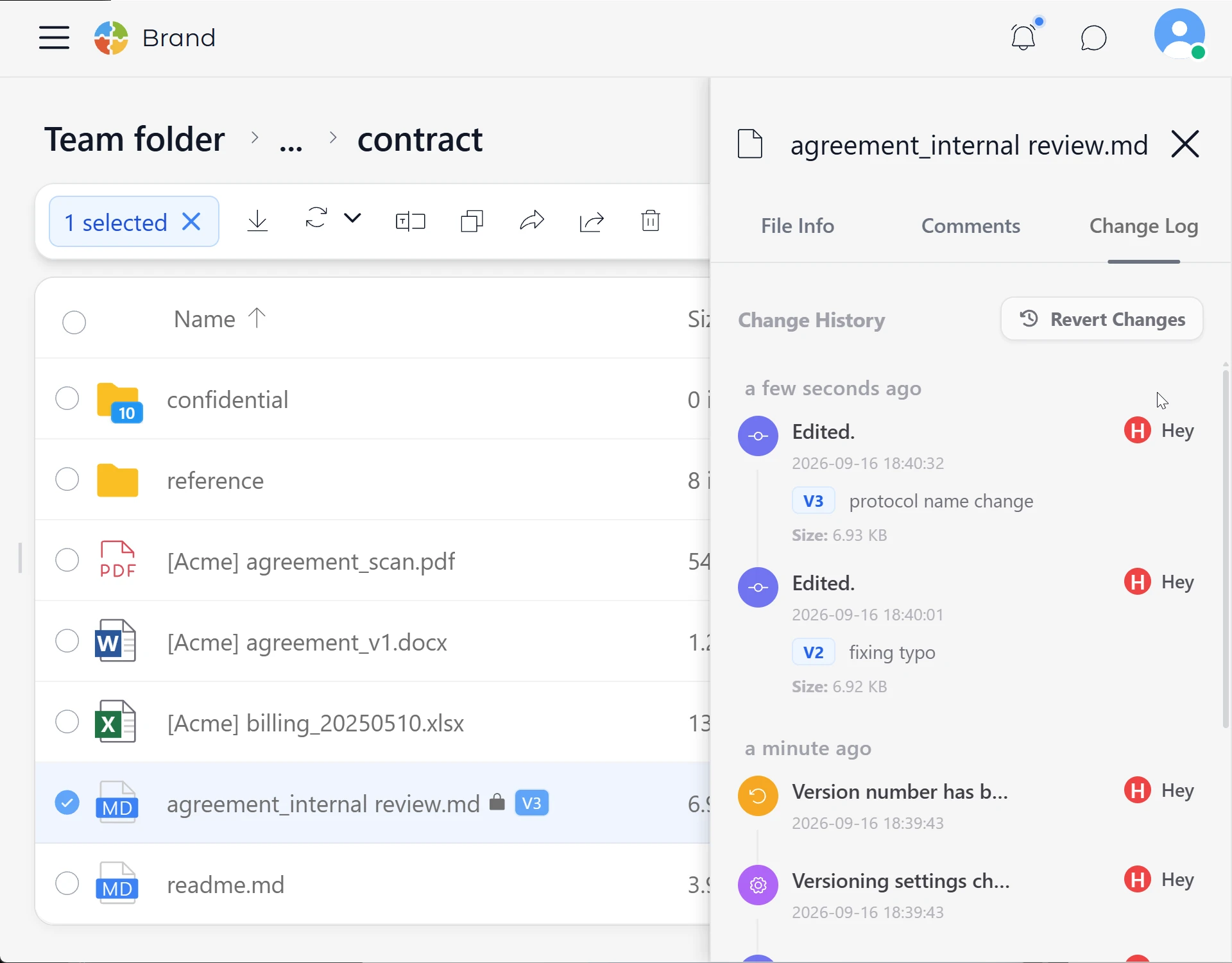
A record of what changed
For supported file operations, keep a record of who made each change, when it happened and what changed. Review it whenever you need to.
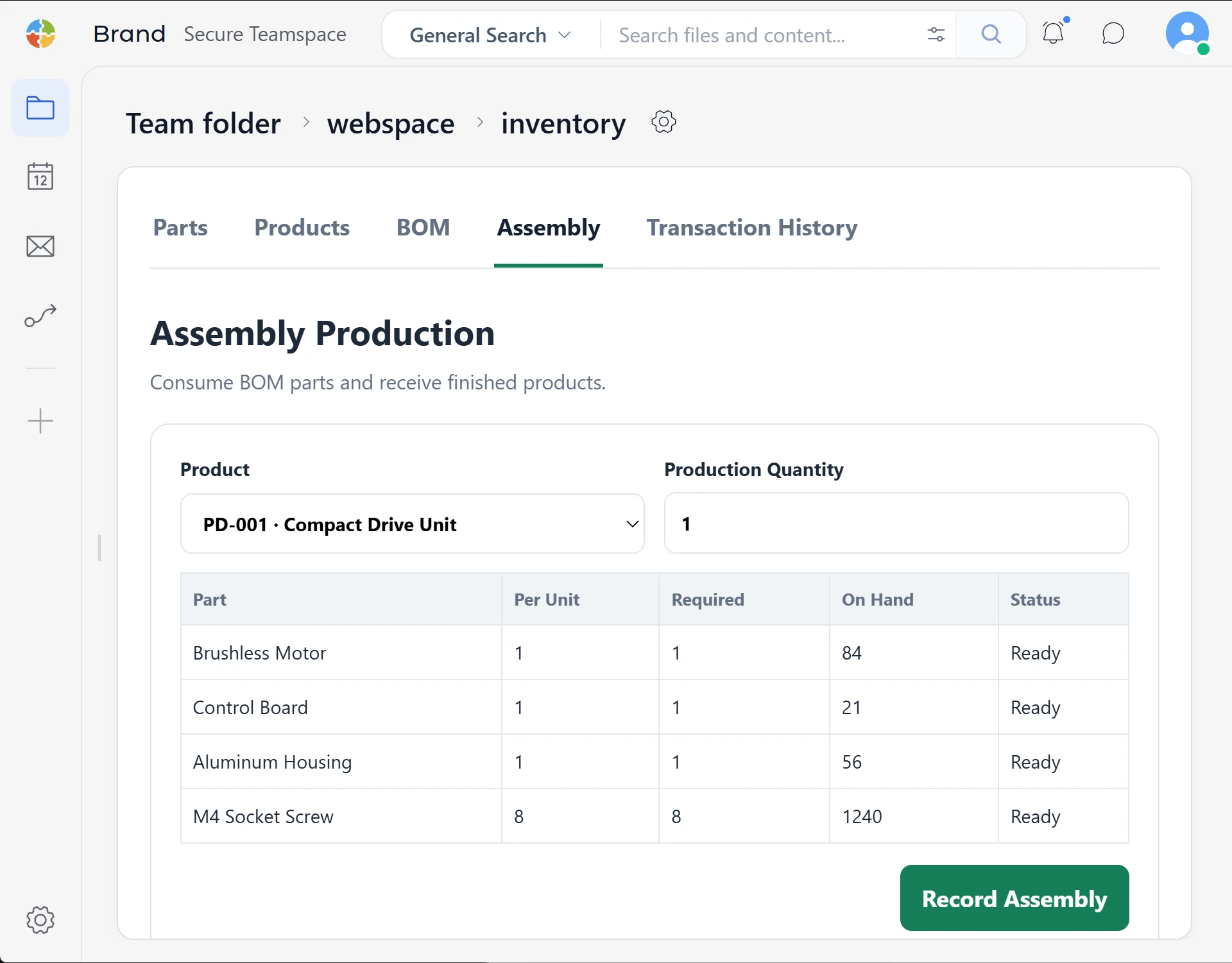
Create and manage databases
Create and manage databases inside your Space. Go beyond spreadsheets with structured data.
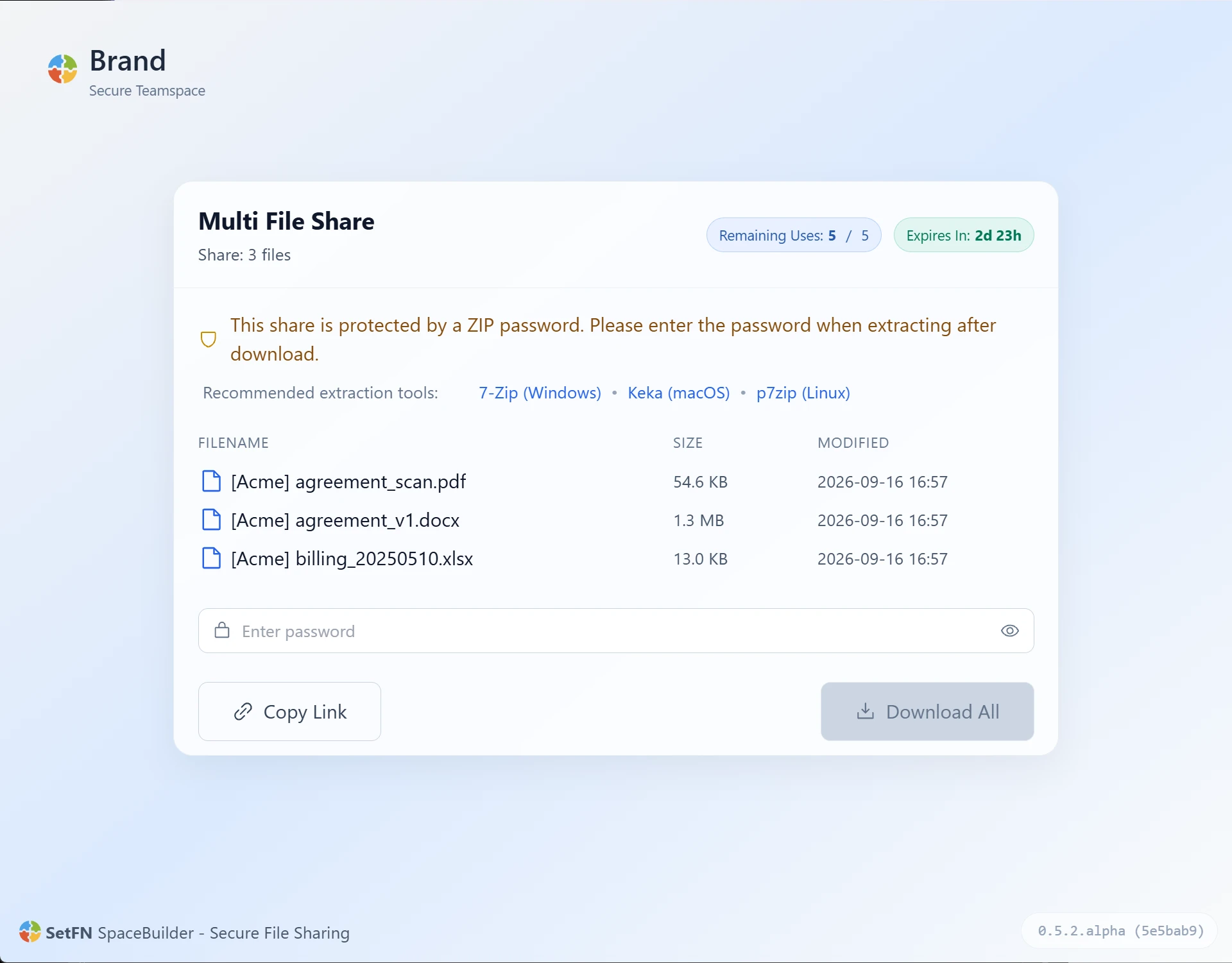
Share on your terms
Create file links with passwords, expiry dates and download limits, and manage the conditions for sharing.
Find documents and images with AI
Keep workspace content organized and ready to search.
 ×
×



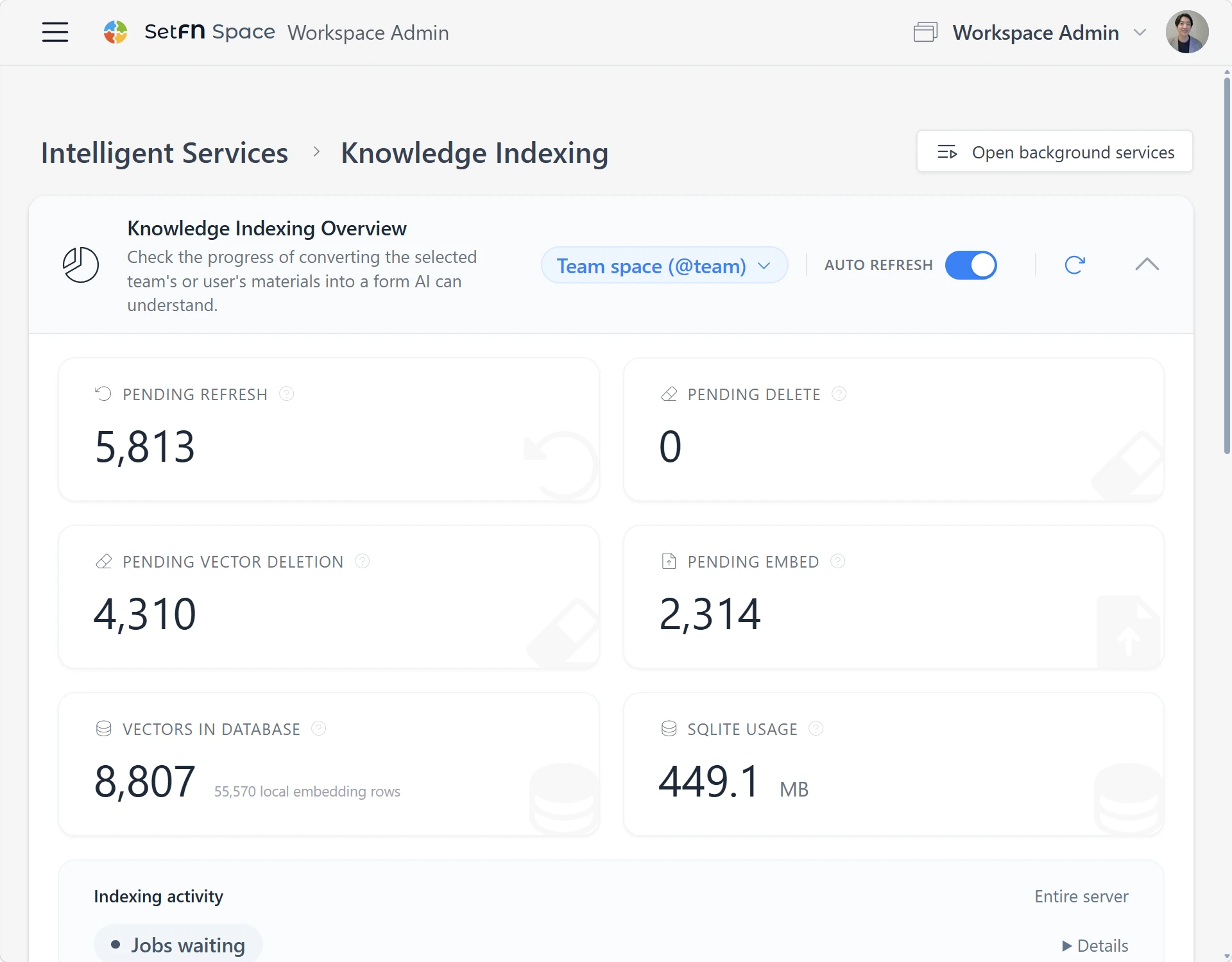
Knowledge indexing
Continuously process and organize your workspace content. Run it on a local GPU with no token charges.
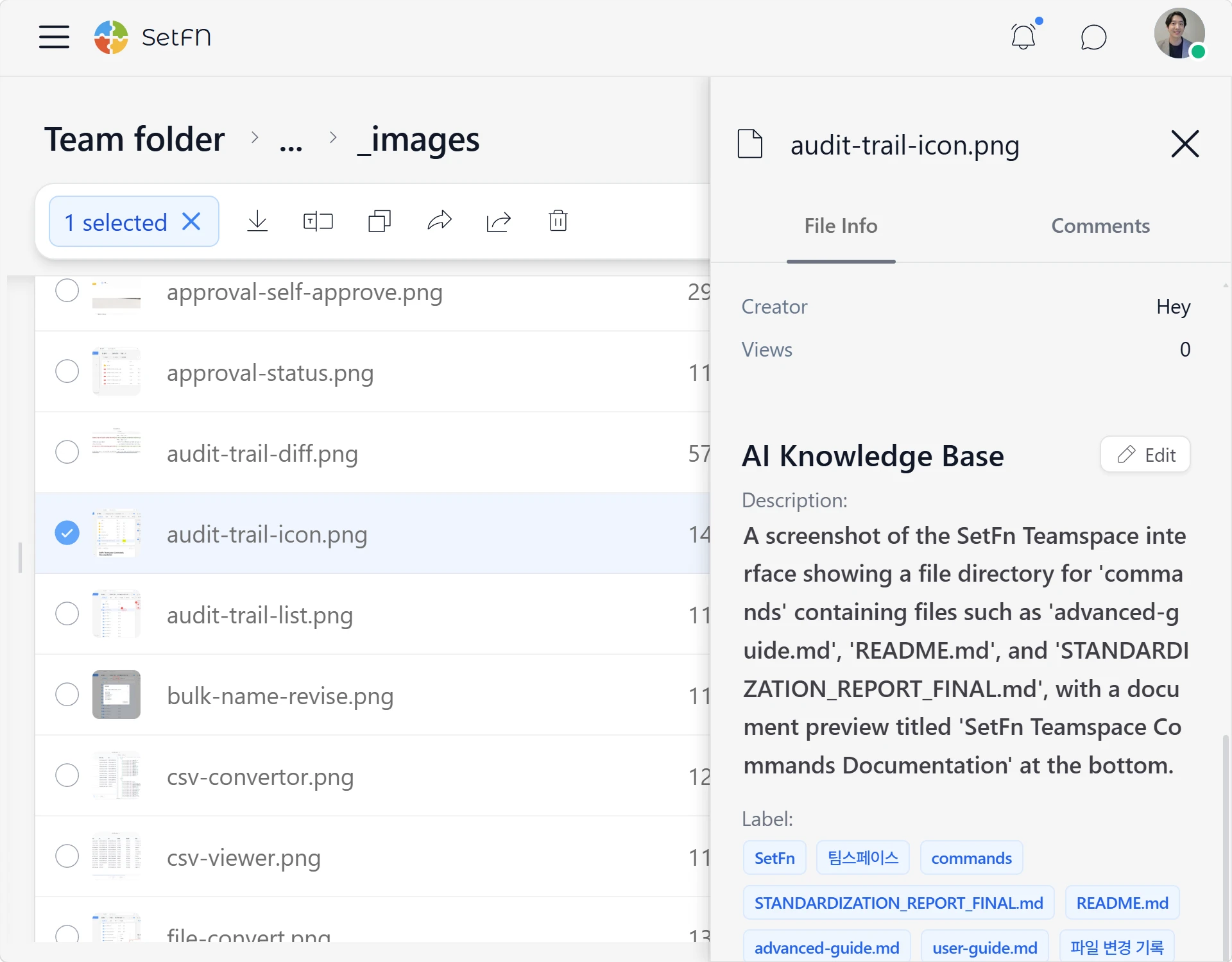
Automatic tagging
AI reads documents and images and adds keywords automatically, laying the groundwork for drawing and image search.
View and edit more file types
Open documents, spreadsheets, images, videos and code without switching apps. Edit supported files in the same view.

View Office, PDF and HWPX files
Open Word, Excel, PowerPoint, PDF and HWPX documents directly. These formats open in read-only mode.
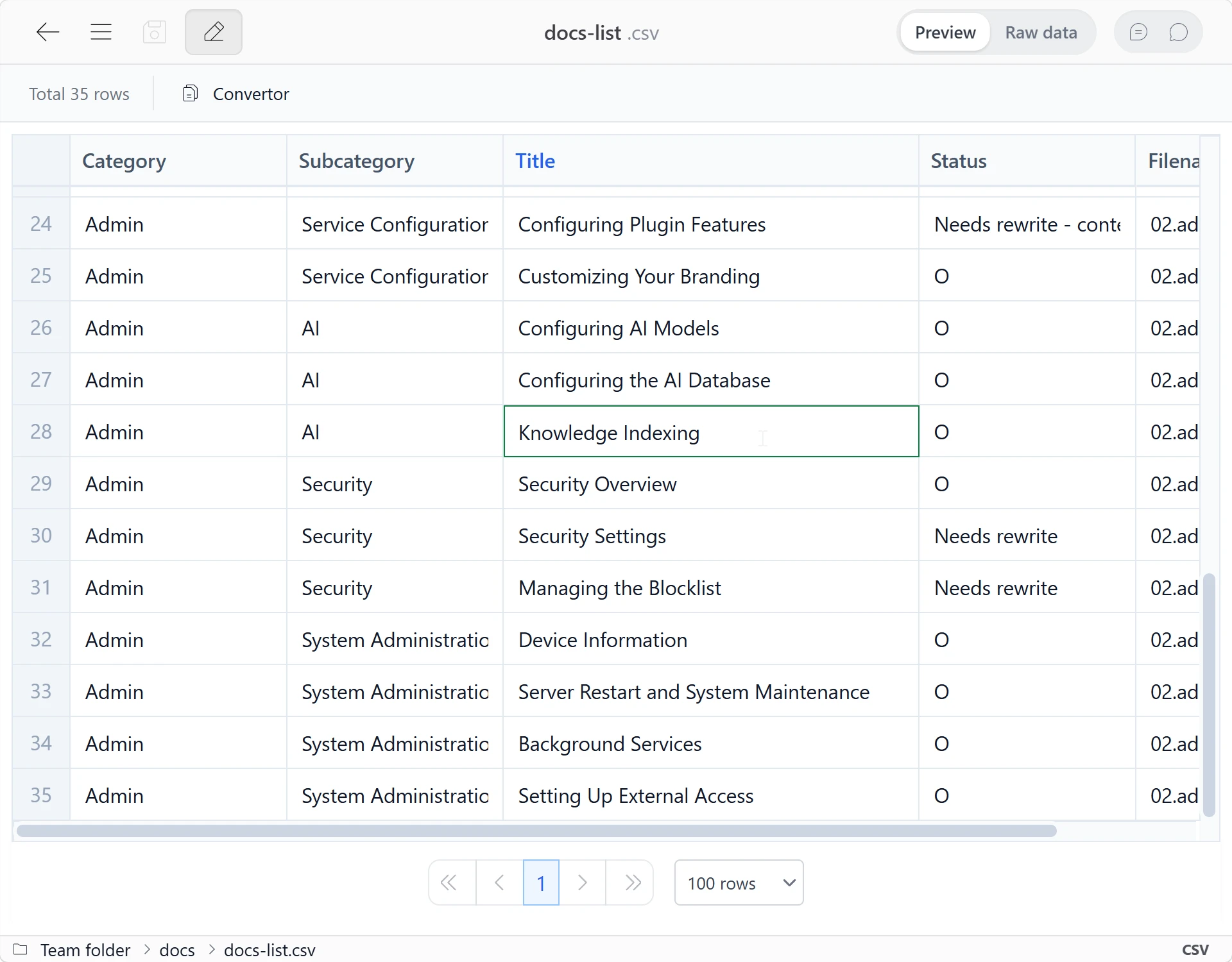
Edit tables and data
Open tabular files such as CSV and update their values without another program.

View your images
Preview a wide range of image formats, including HEIC and HEIF photos from your iPhone, right in your workspace.
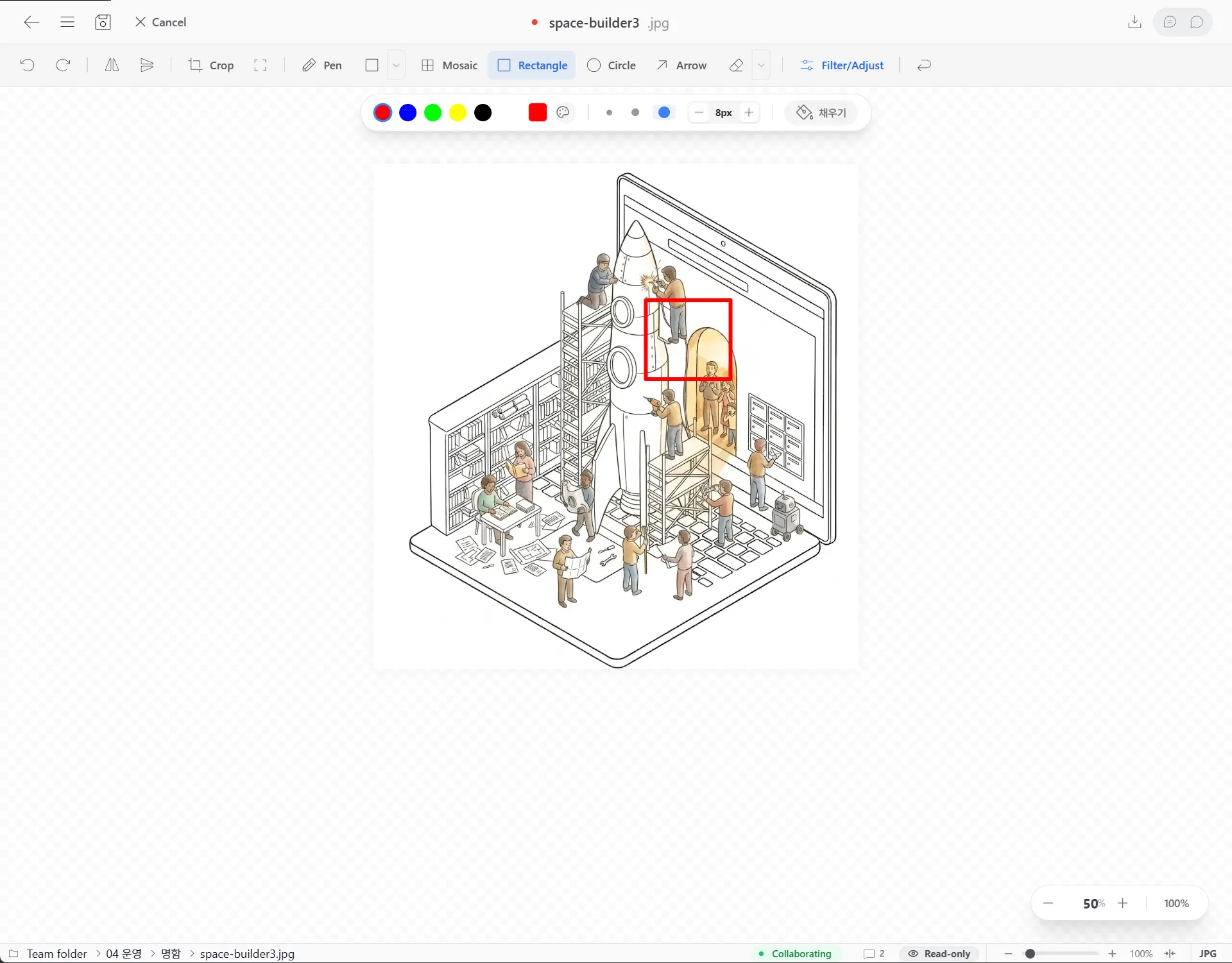
Make quick image edits
Crop, draw and highlight without leaving your workspace.

Play videos in place
Play common video formats such as MP4 and WebM without a separate player. Adjust playback position and viewing size directly.
Structured documents
Open Markdown files as to-do lists, notes, Kanban boards, timelines and approval forms. Switch back to the source whenever you want to edit it directly.
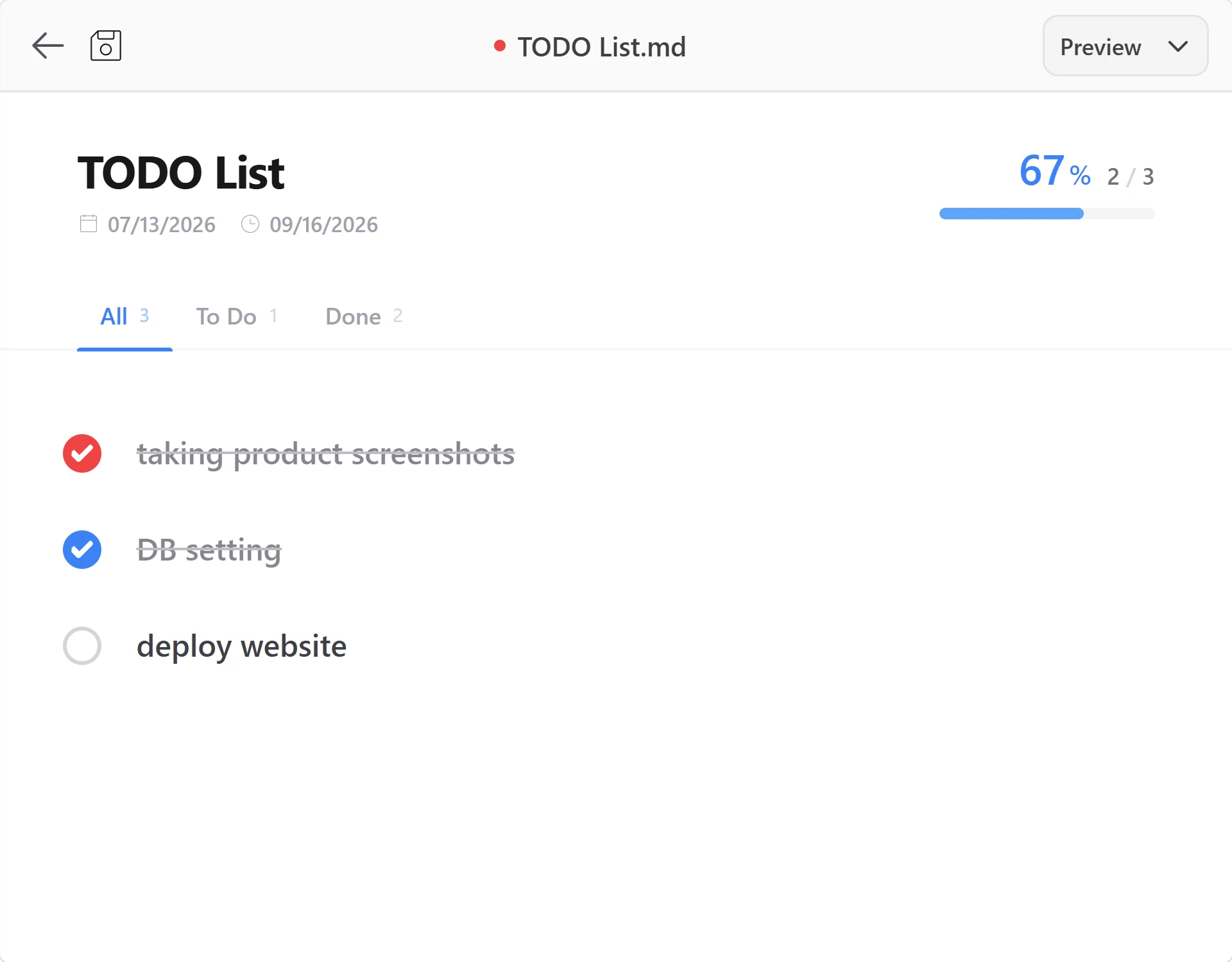
To-do lists
Track completion and priorities in a checklist.
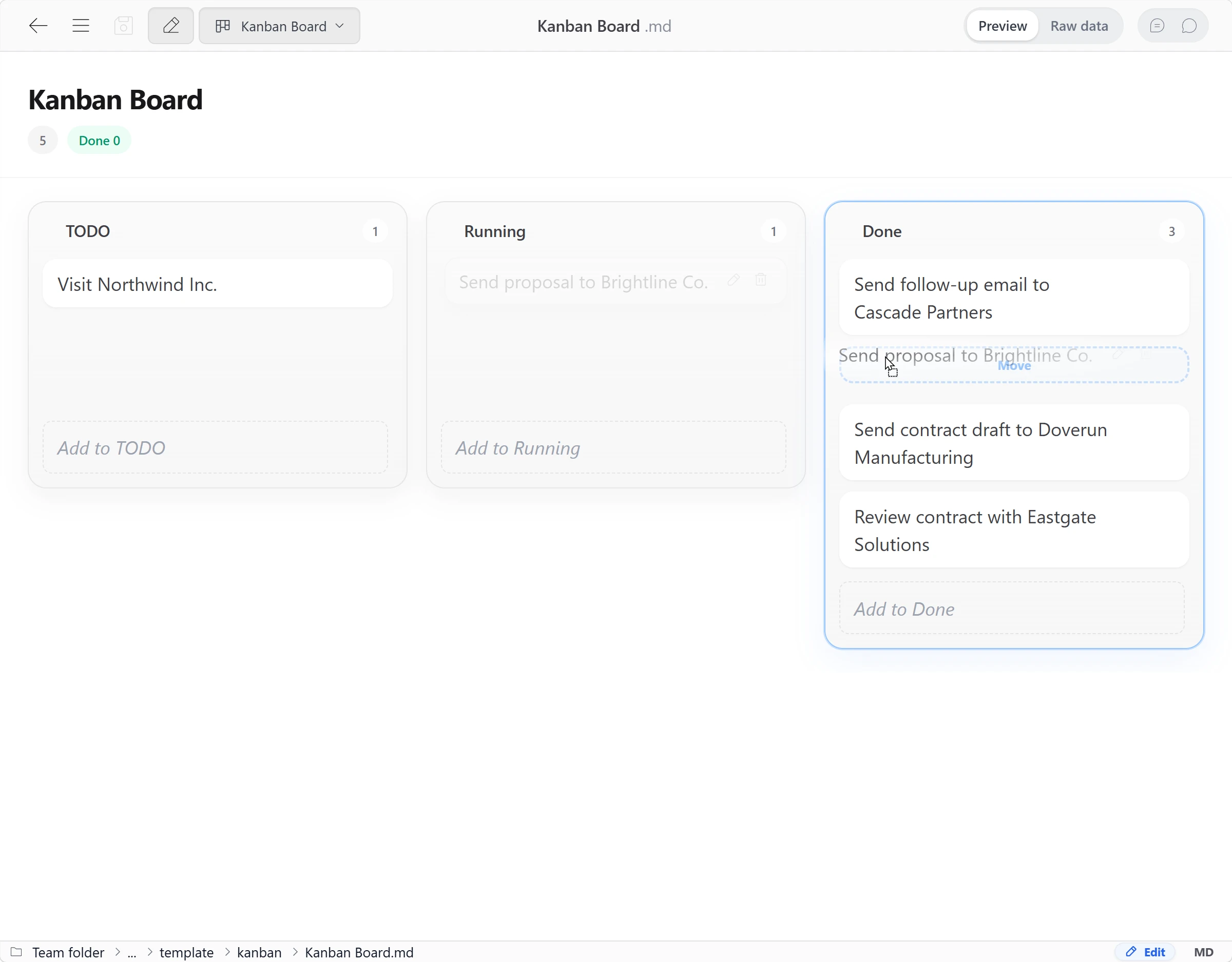
Kanban boards
Move task cards between columns as work progresses.
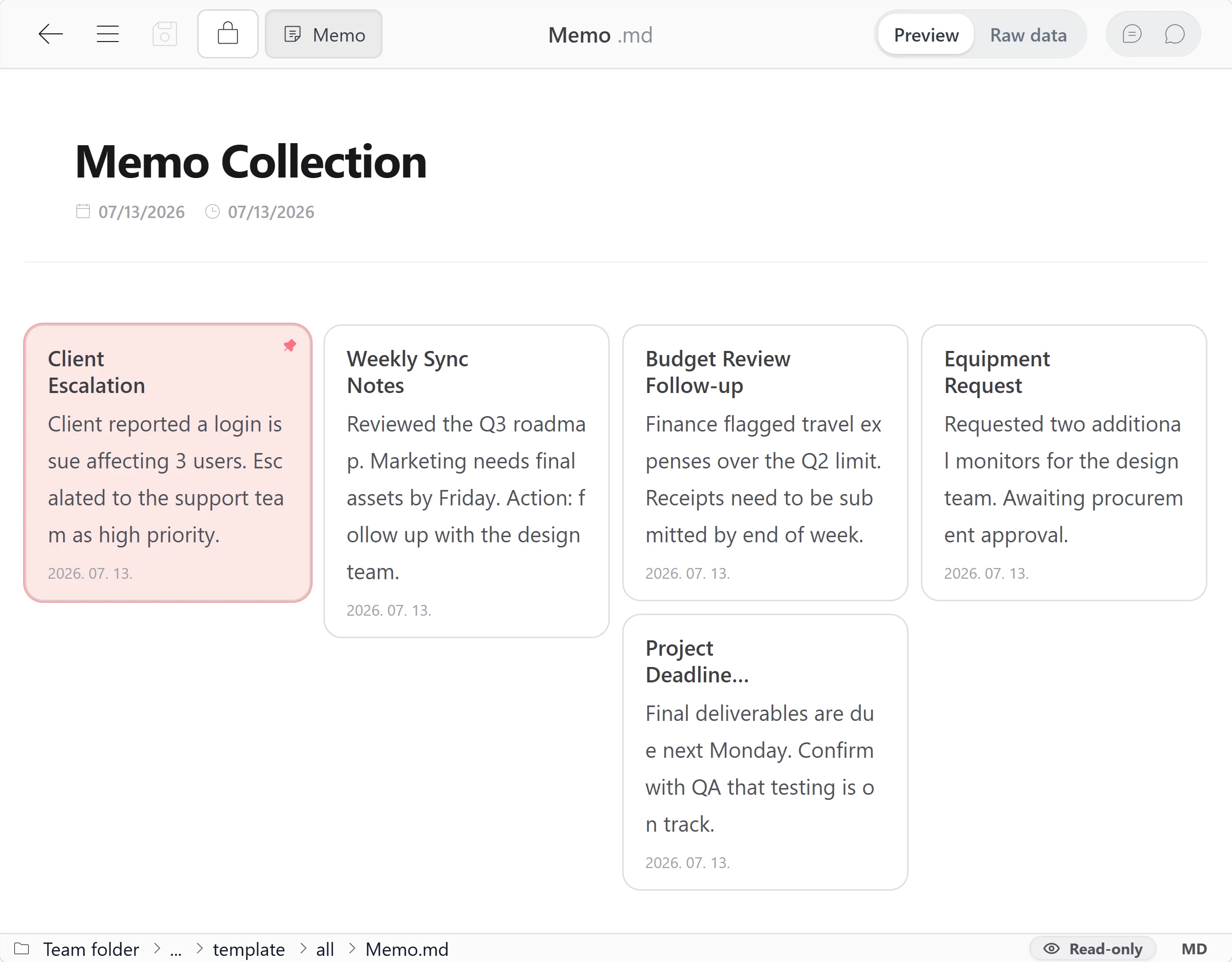
Sticky notes
Arrange and pin notes wherever you need them.
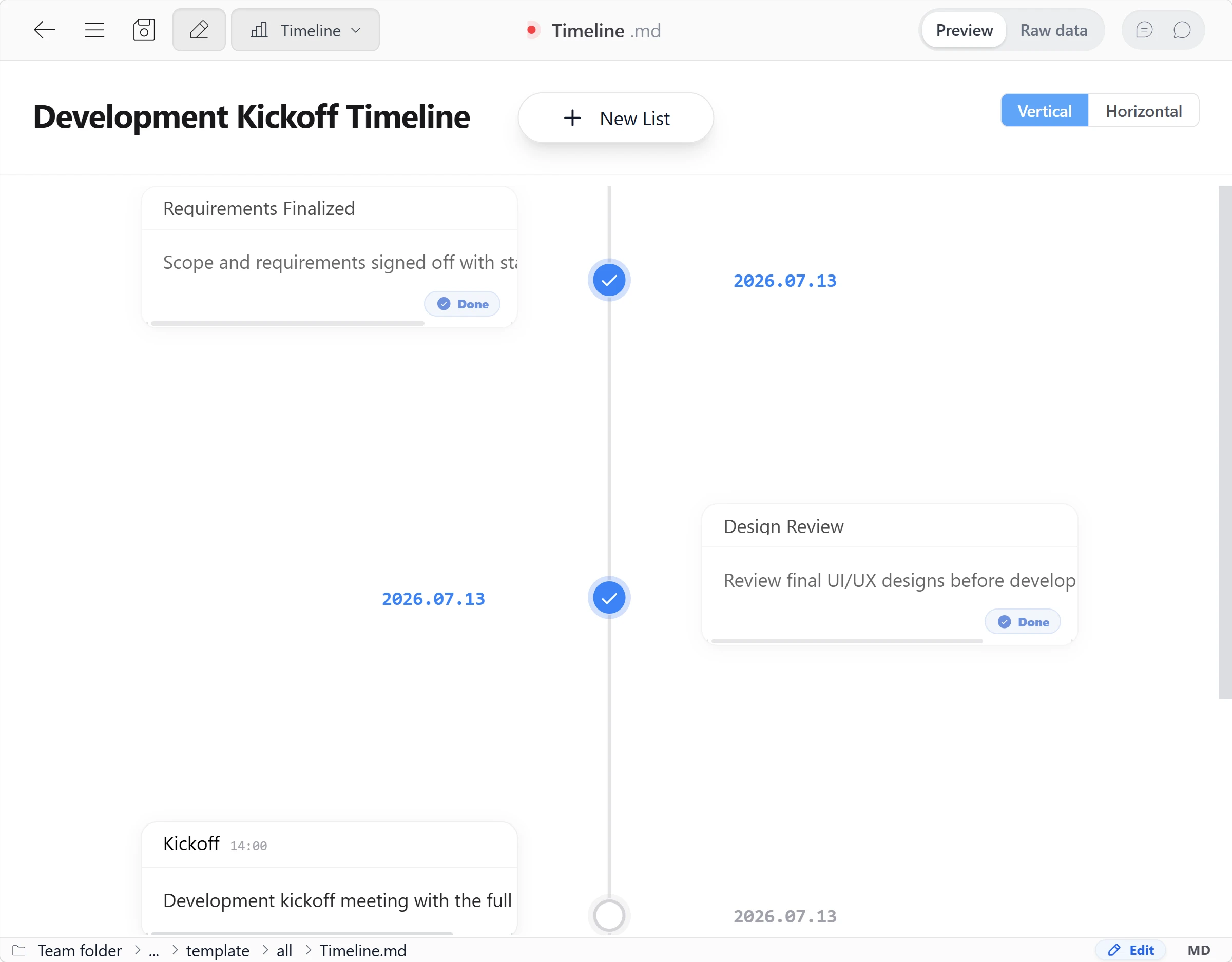
Timelines
View schedules and events in chronological order.
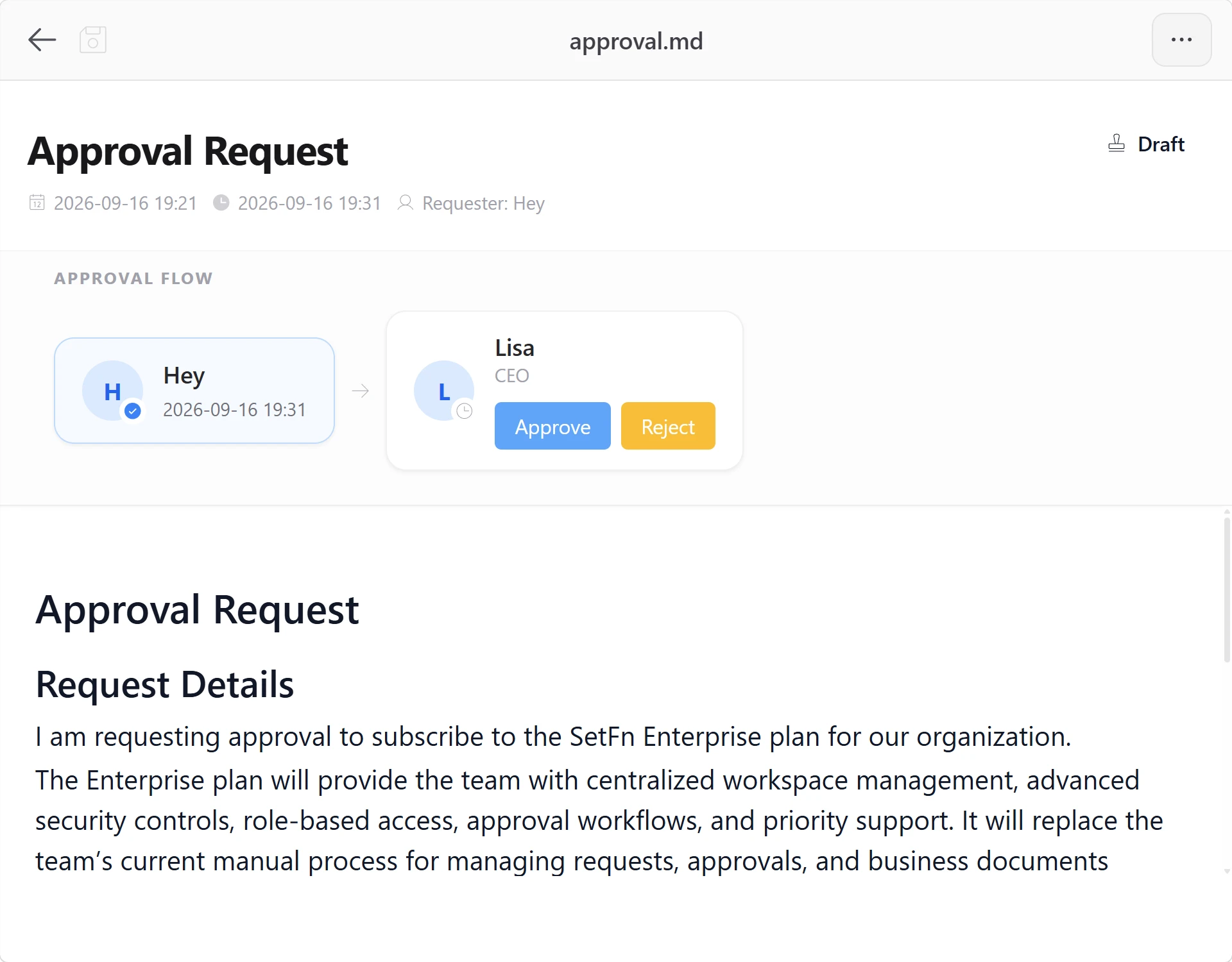
Approval forms
Manage the order of reviewers and track approvals and rejections.
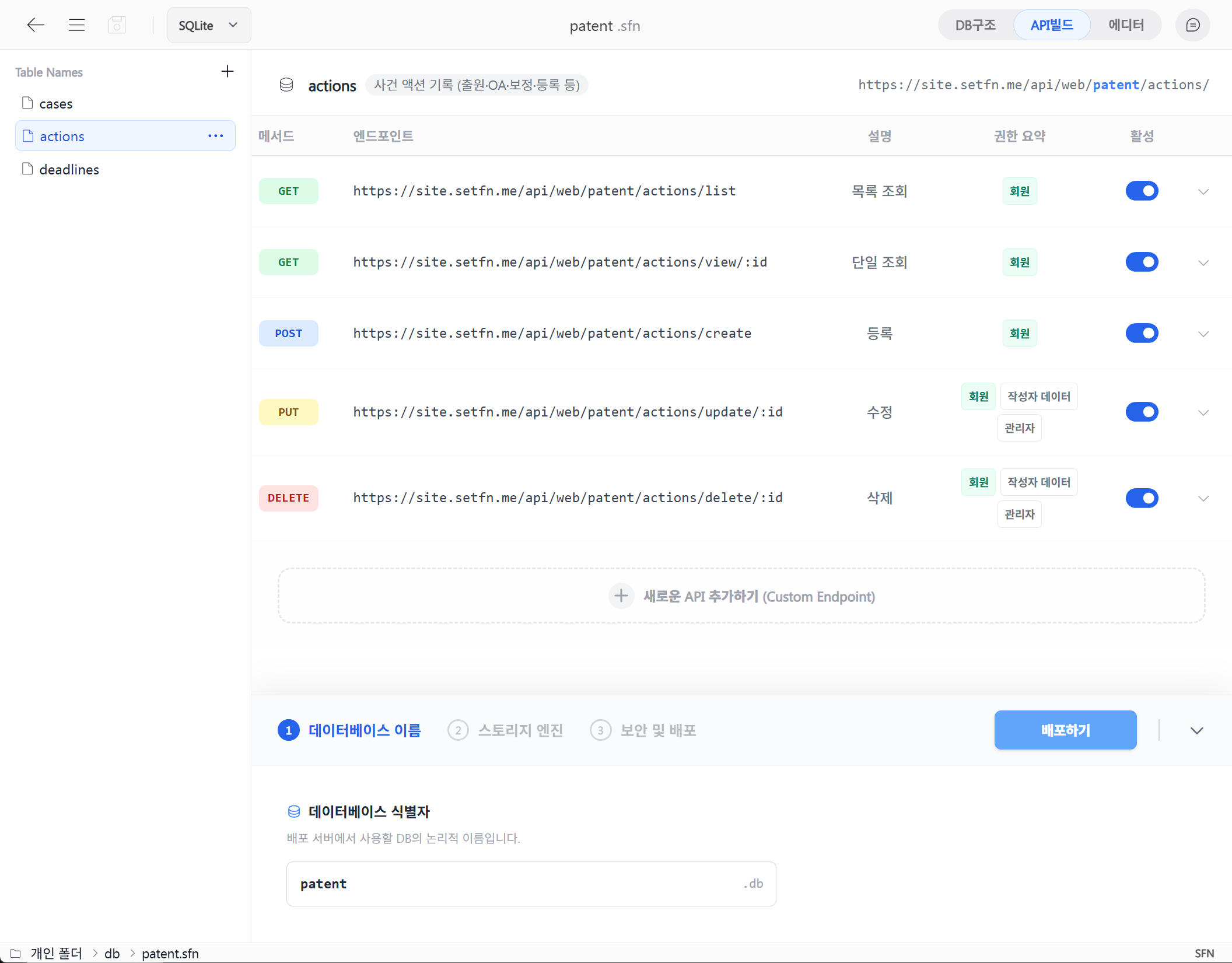
Database schema files
Create databases from JSON-based schema files (.sfn). Connect schemas and APIs to build on your structured data.
Folder management
Keep your familiar folder structure while adding file processing, guidance, search and automation rules.
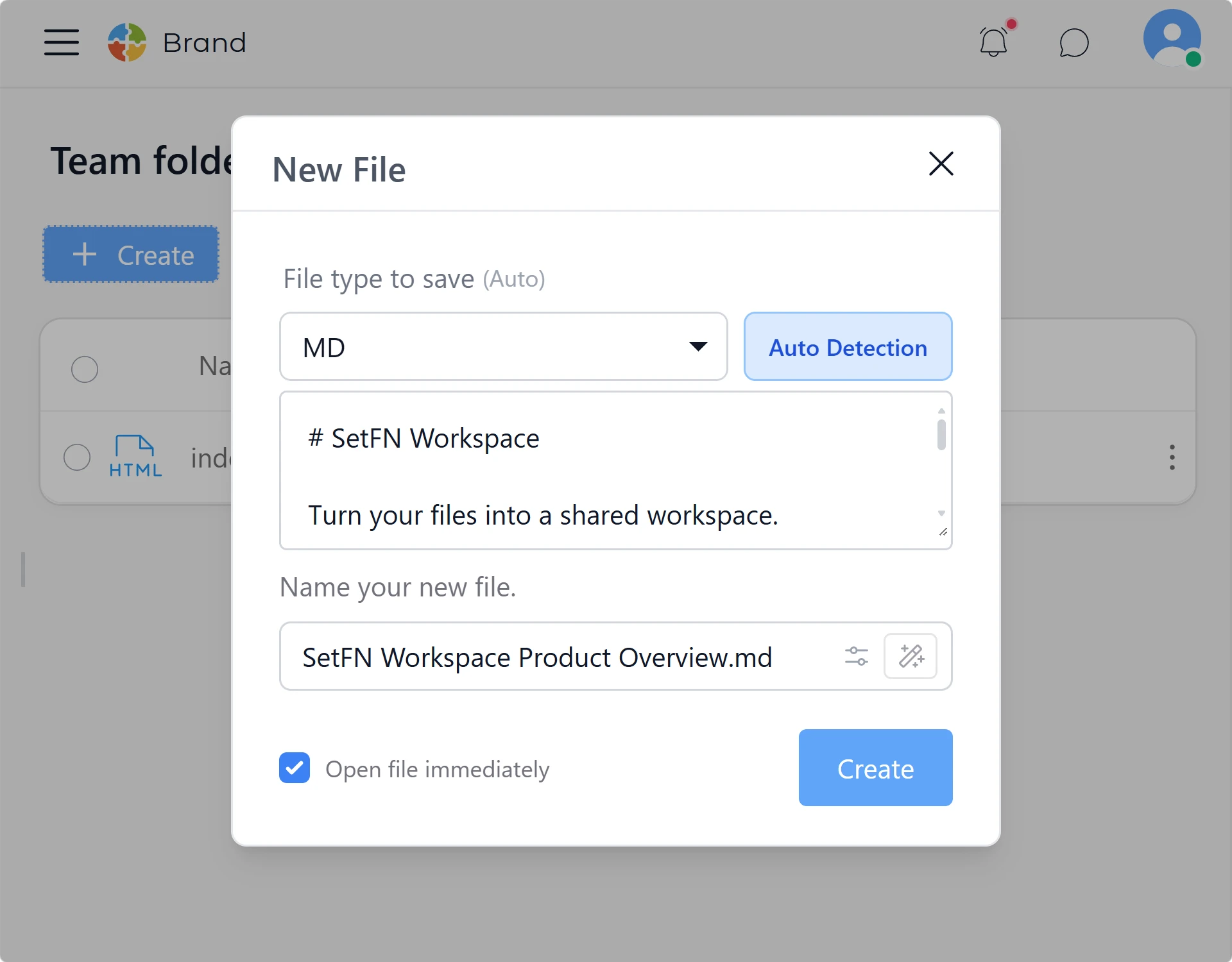
Smarter paste
Paste screenshots, Markdown or HTML to open a file creation form with the format detected. AI suggests a file name.
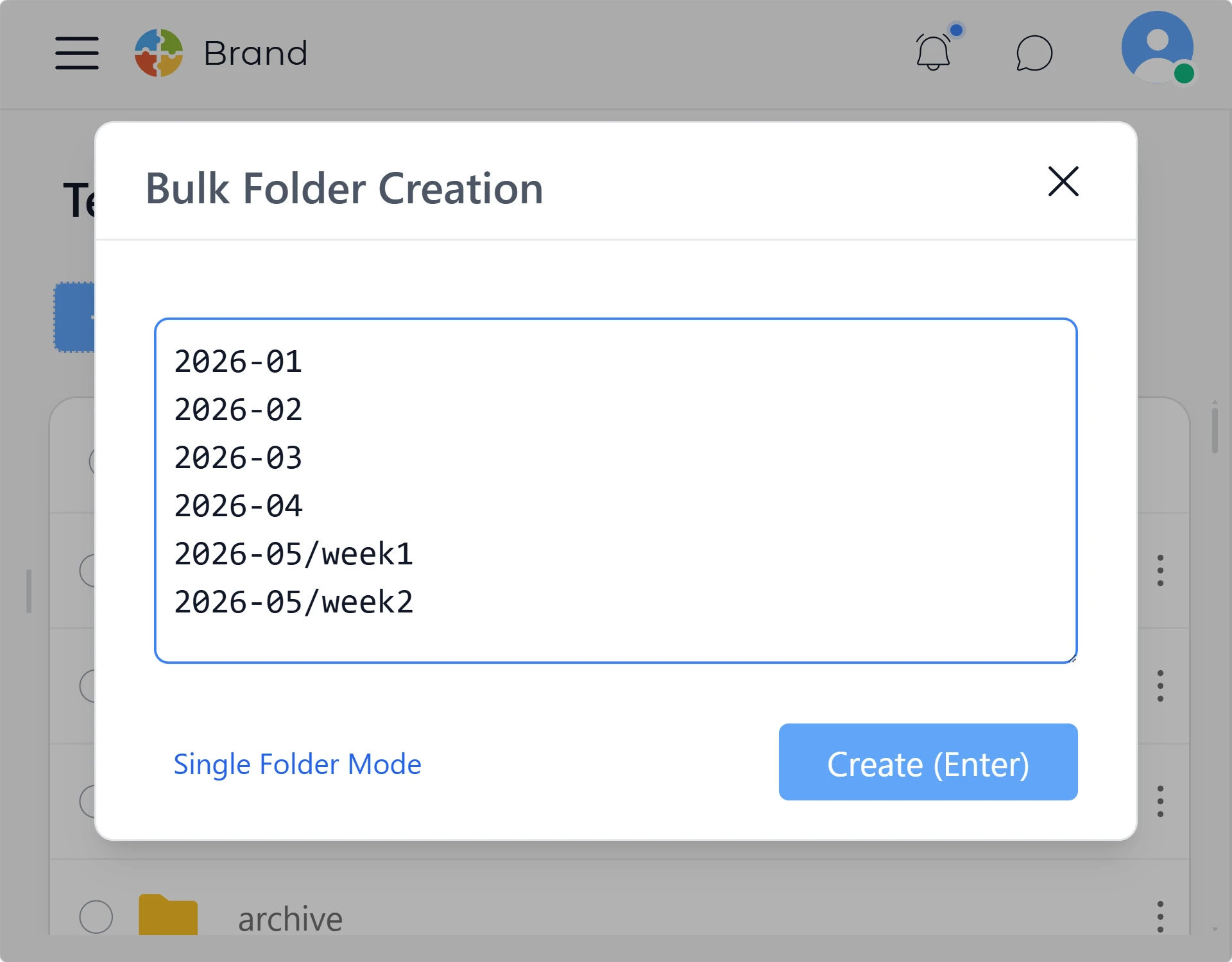
Create folders in bulk
Turn a text list into multiple folders at once. Set up the structure for recurring projects in moments.
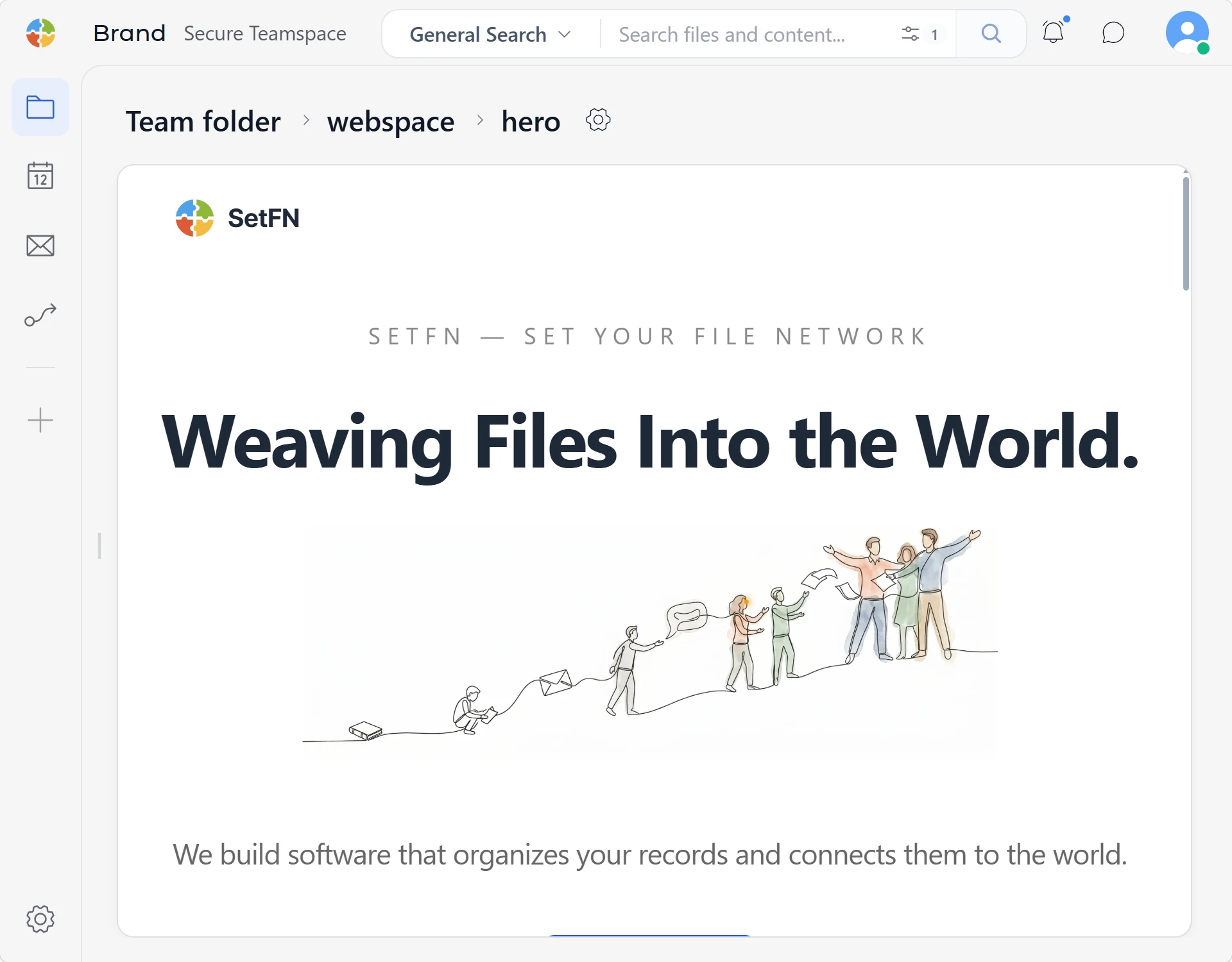
A folder becomes a website
Put an HTML, CSS and JavaScript project in a folder and enable web view to use it as a website. Connect internal boards or business databases.
A folder becomes a database
Keep working in folders while your internal data takes shape in the workspace, without setting up a separate place to store it.
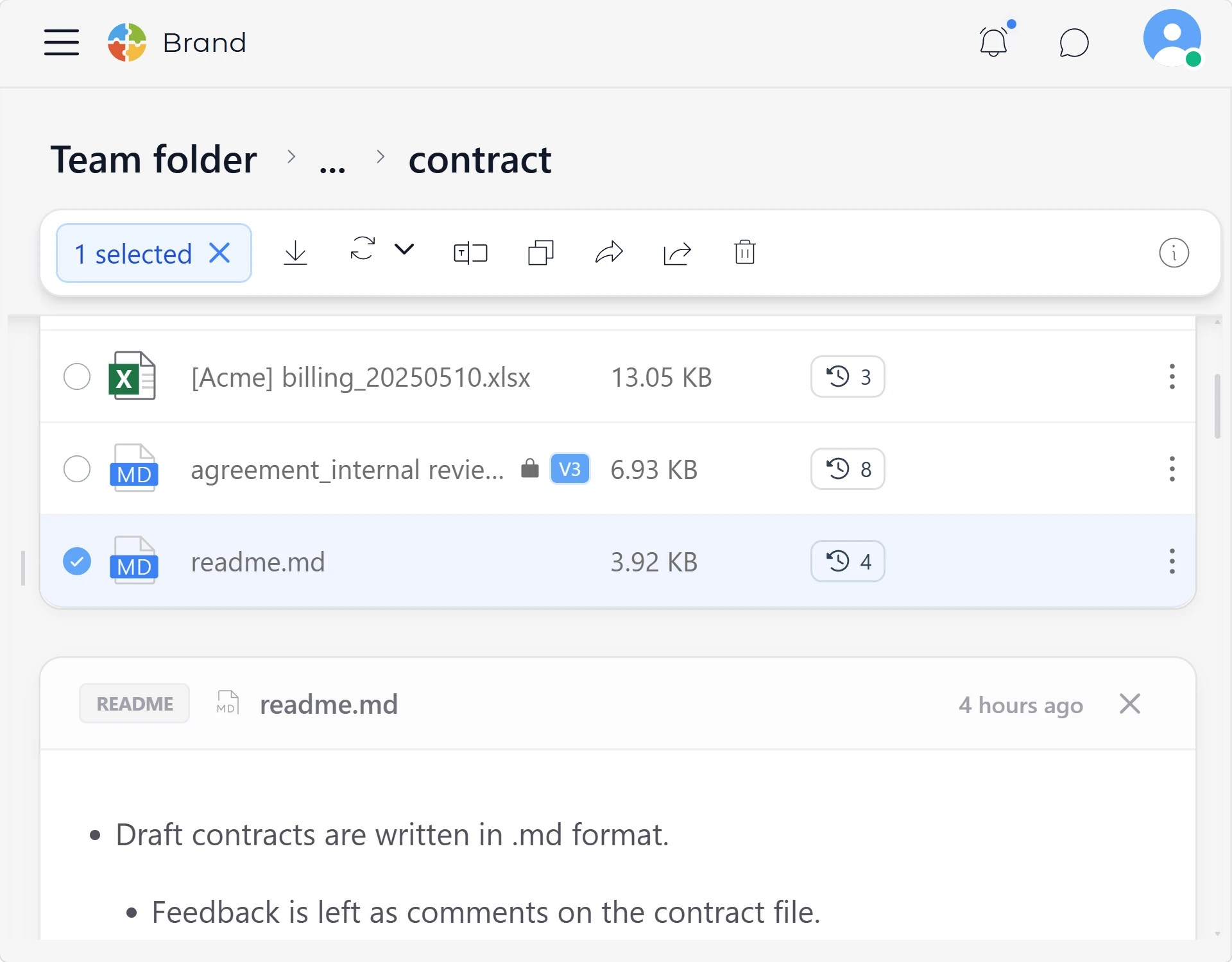
Give folders context
Add a folder note with essential information so new teammates can understand the context as soon as they open it.
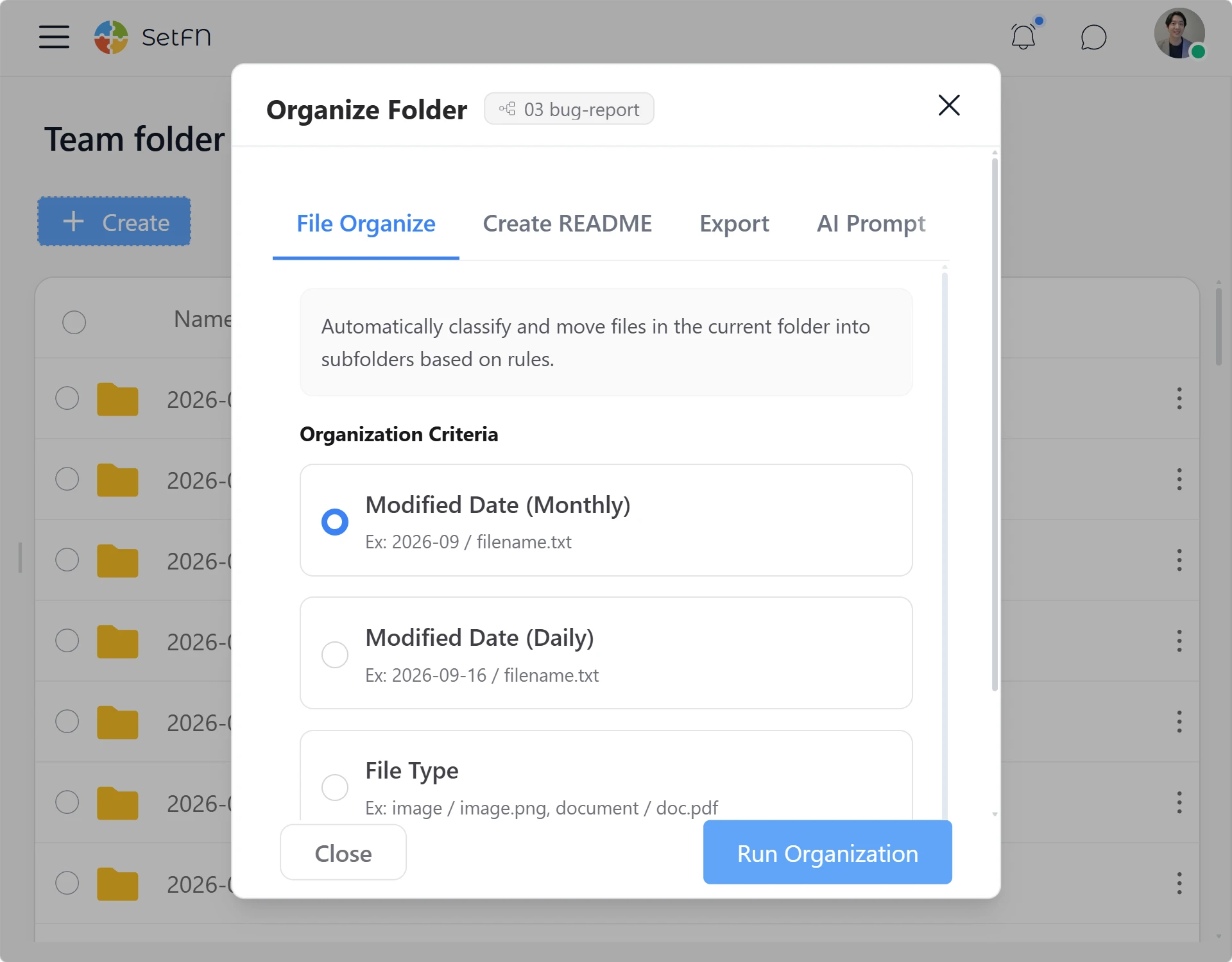
Put folders in order
AI examines the context of your files and organizes folders using the categories you choose.
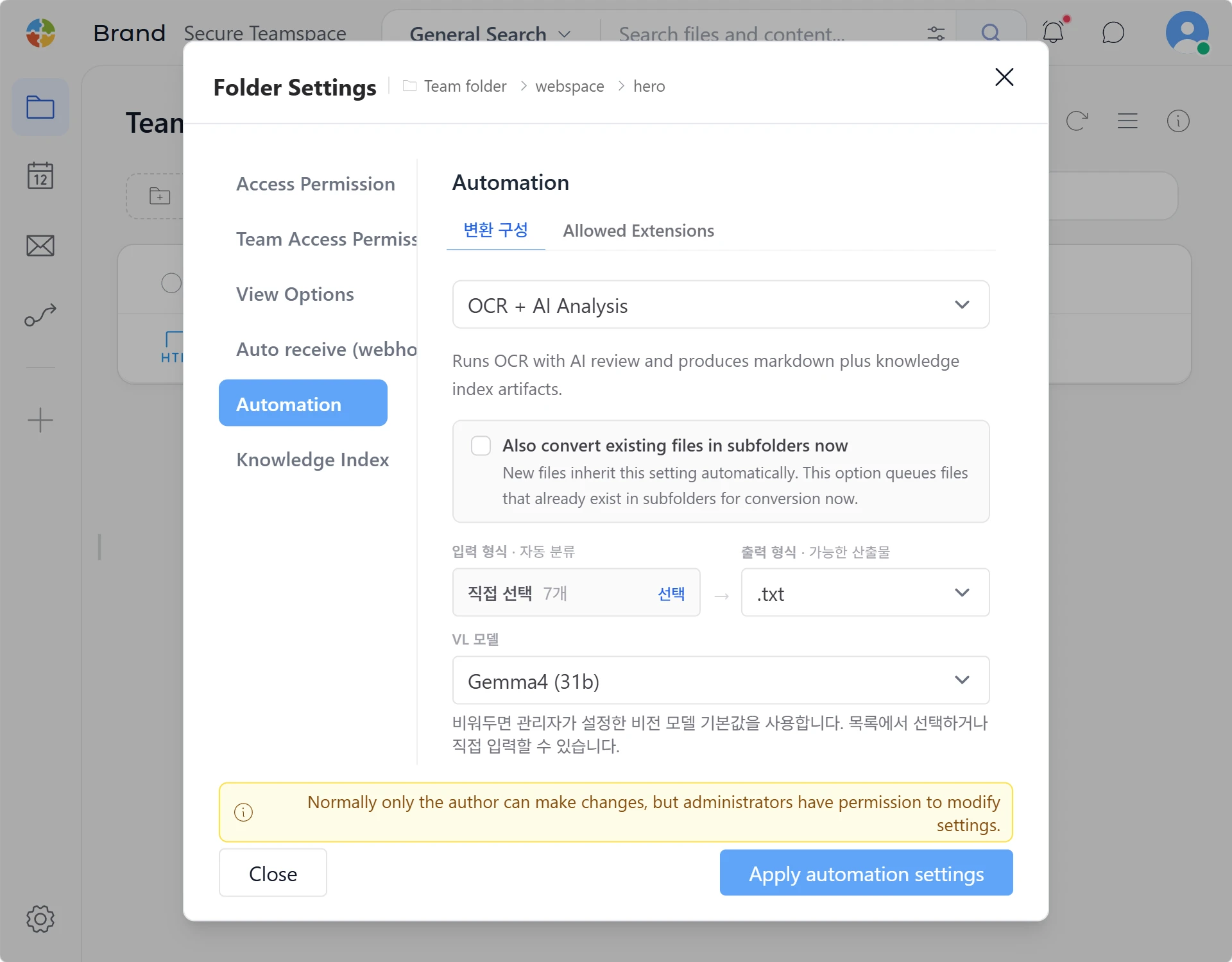
Automate recurring work
Define file-processing rules for each folder and let the system handle the repetition.
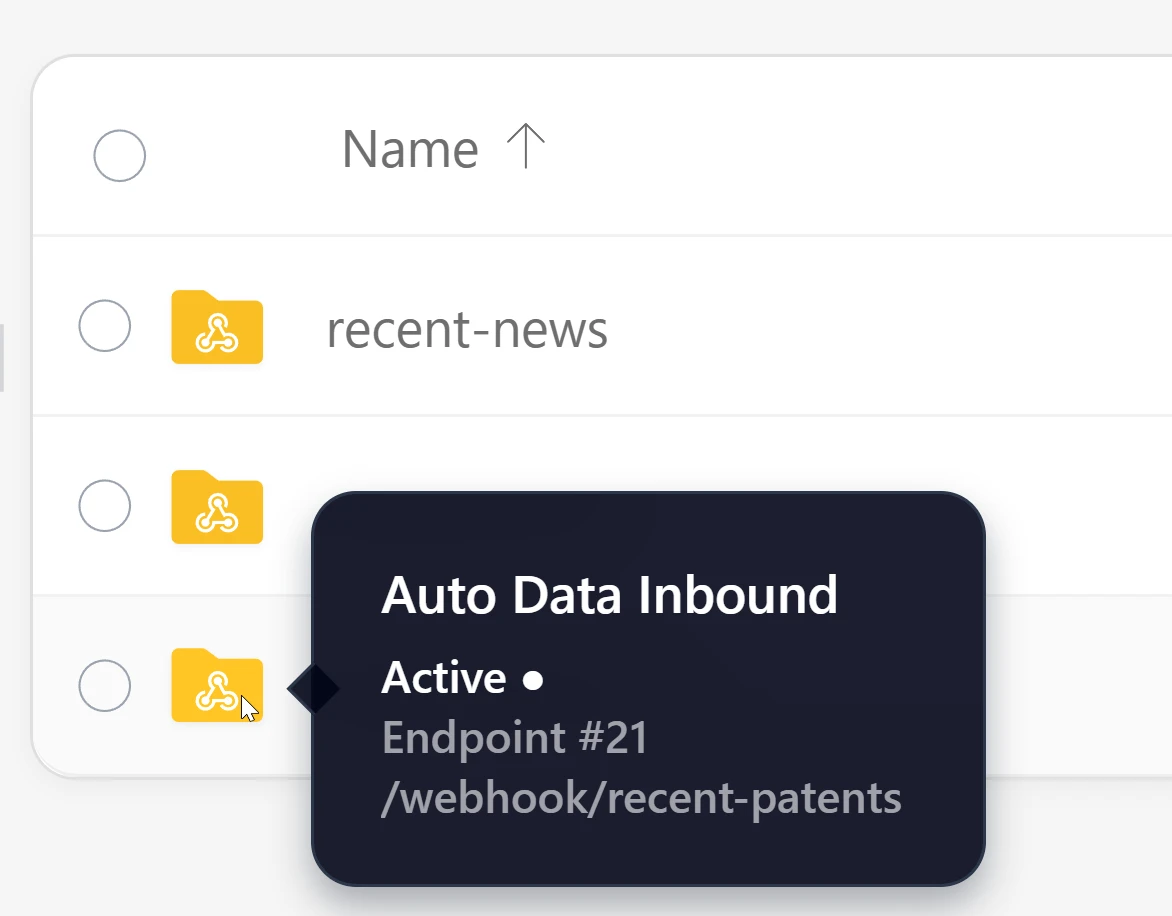
Collect data with webhooks
Save incoming data, files and notifications to a chosen folder. Configure webhook authentication and storage rules.
Member management
Set access by role, from administrators to guests. Decide which spaces each person can use.
Teams and access levels
Assign users to teams and levels, then restrict folders to the teams and levels you choose.
Show only relevant folders
Hide folders a person cannot access. Give teams and external collaborators access to the resources they need.
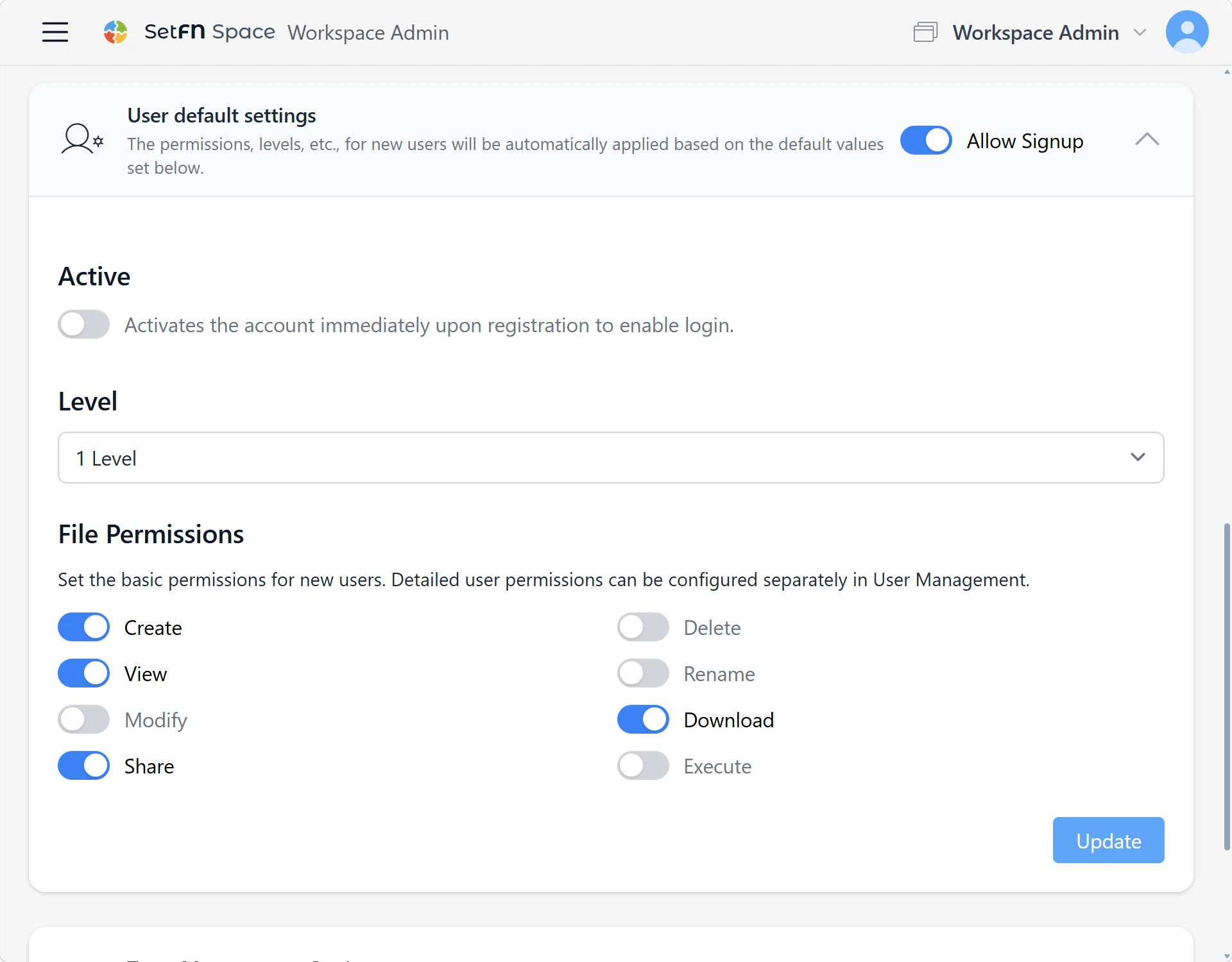
Choose how people join
Allow open registration, require an invitation or review sign-up requests before approving them.
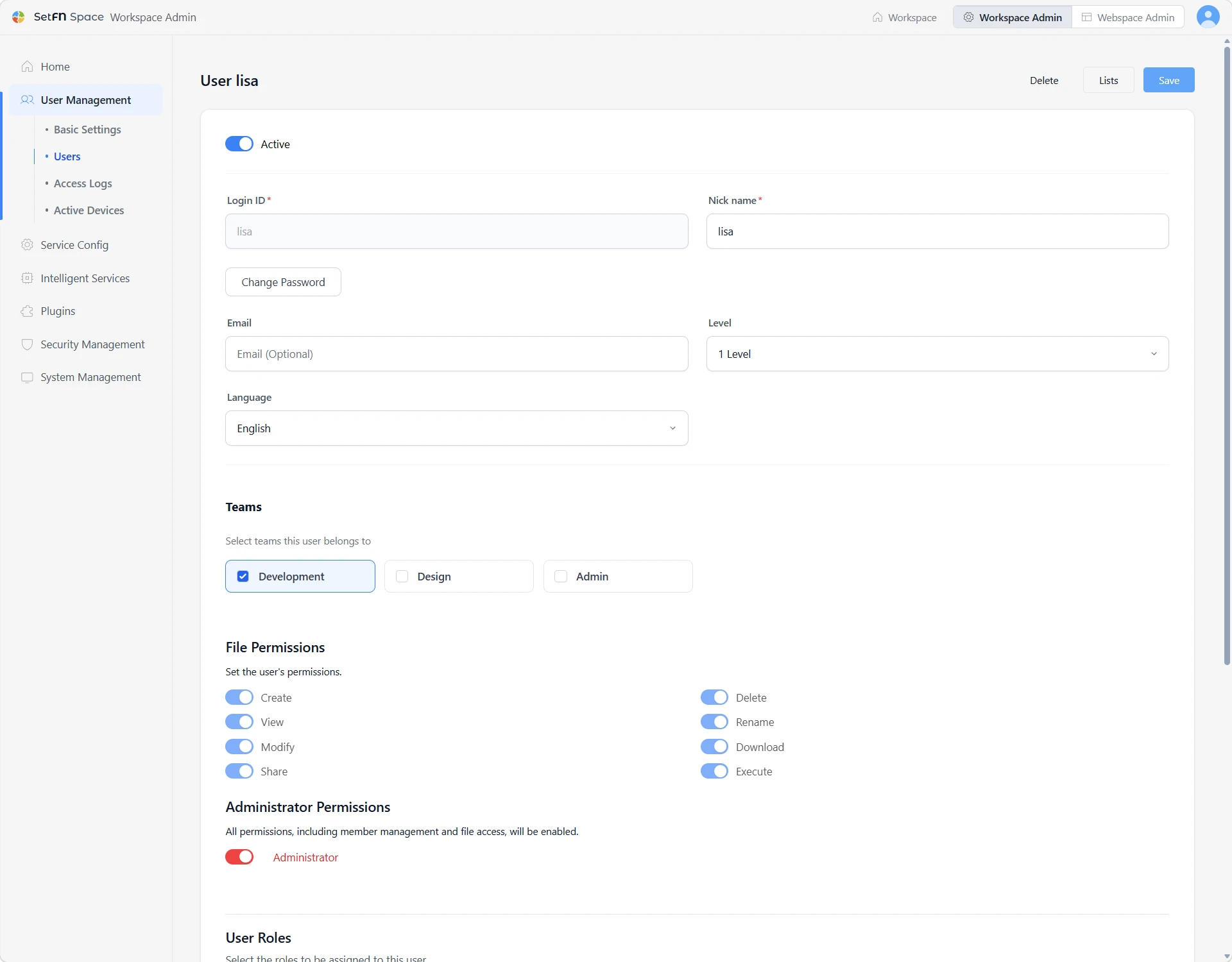
Fine-grained permissions
Control viewing, editing and deletion for each user. Use teams and levels to structure access.
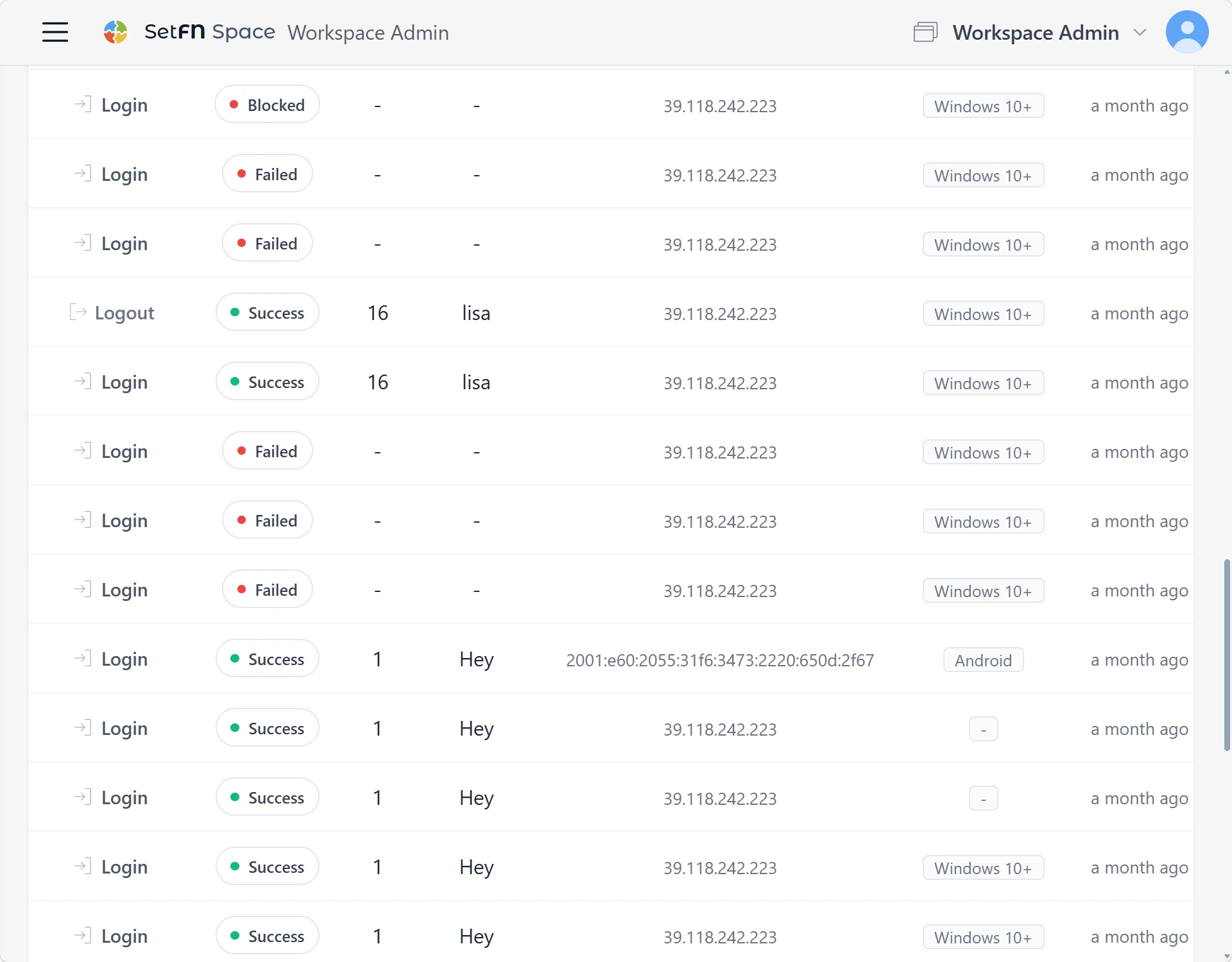
Review access history
Review login history and access patterns for each user to help spot unusual activity early.
Team and personal spaces
Separate team and personal spaces within one workspace. Define ownership and access by space without copying files.
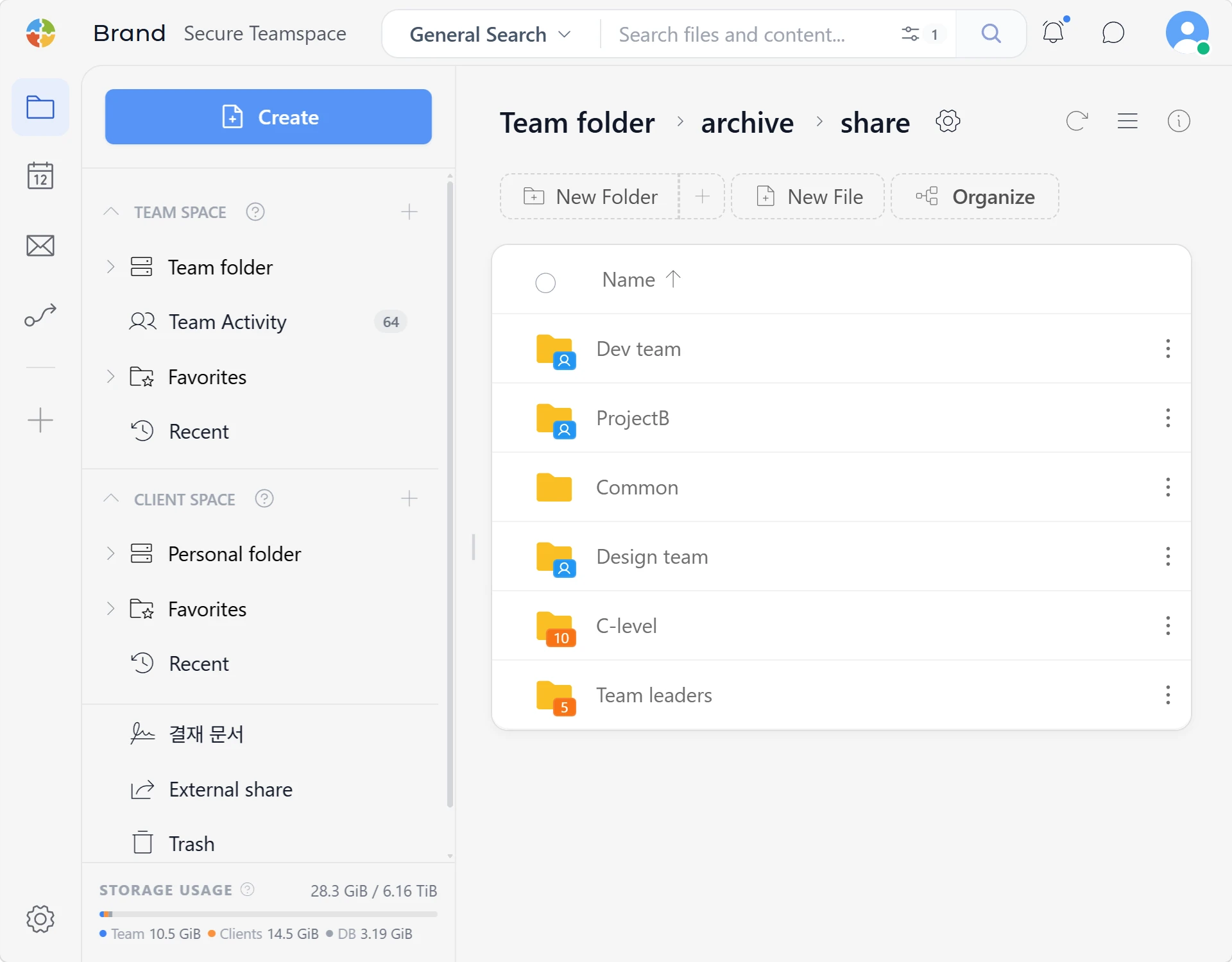
Team spaces
Manage shared files and folders together. Organize project, department and client work by team and access level.
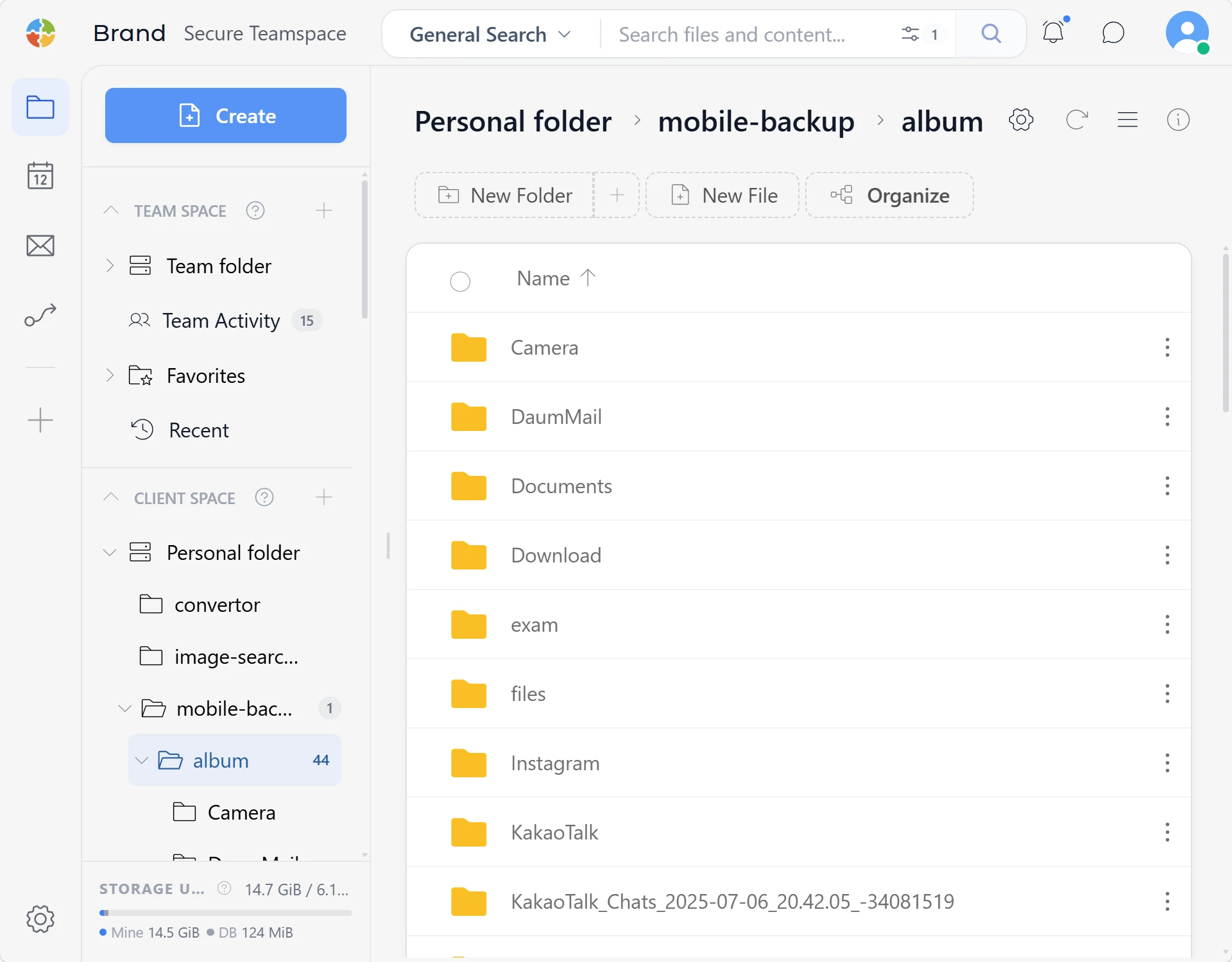
Personal spaces
Personal files are hidden from other users. Only operators can access them under the applicable policies.
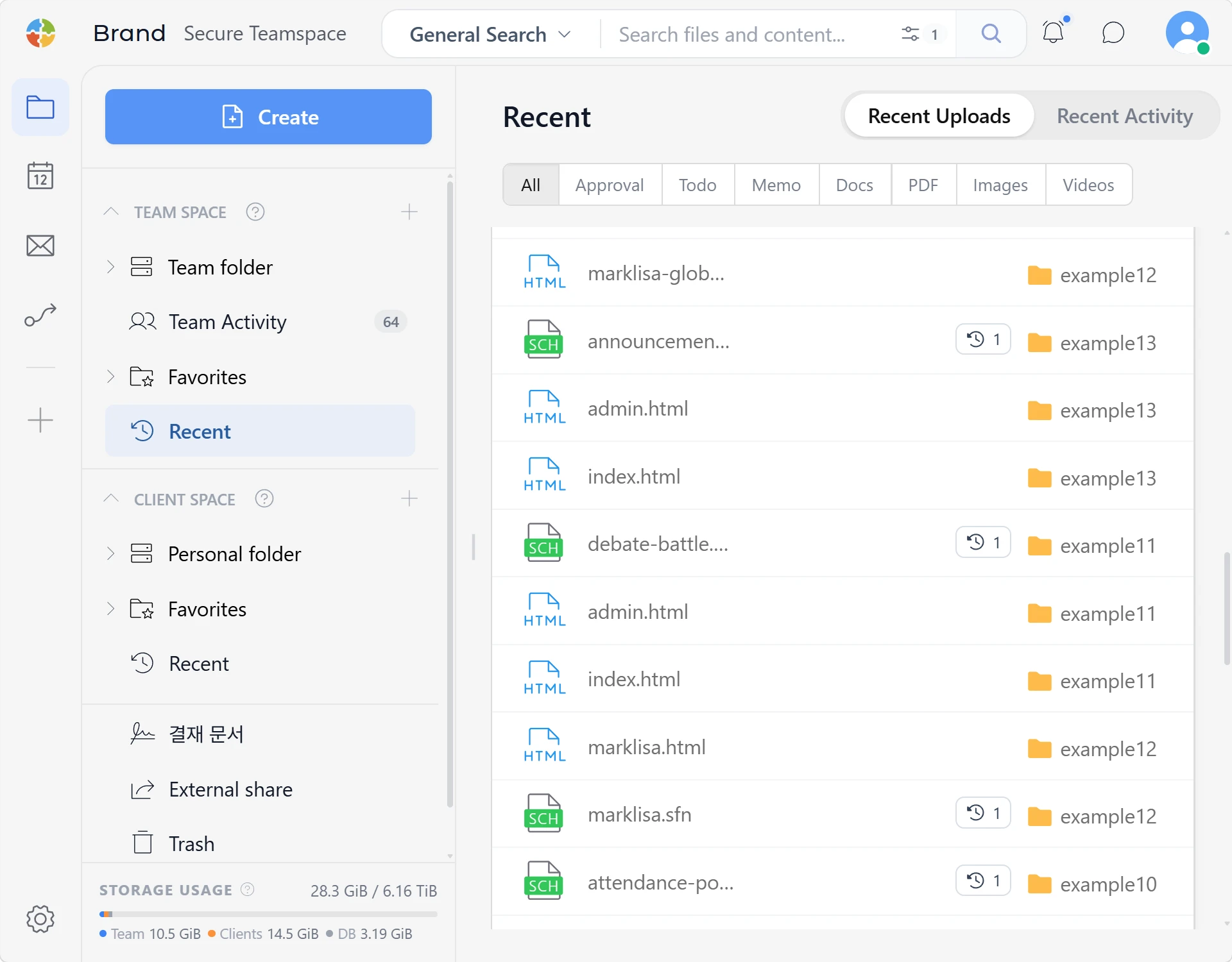
Favorites and recent files
Keep separate favorites for team and personal spaces, and find recently created or edited files through activity.
Security
Keep protection in the background and control in your hands. Set your own workspace policies for encryption, file locks, IP restrictions and automatic blocking.
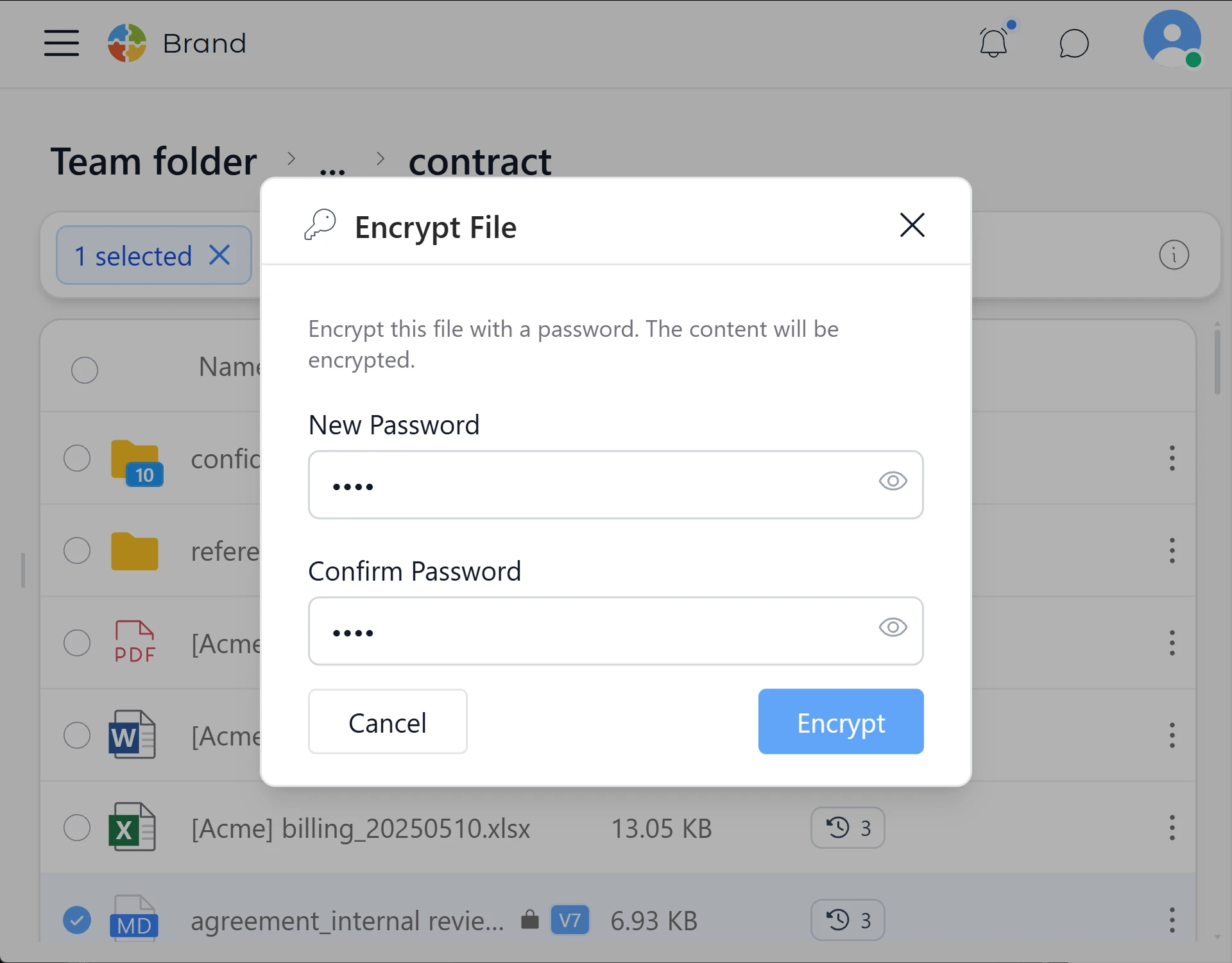
File encryption
Encrypt files with a password. Stored contents are encrypted so only authorized users can read them.
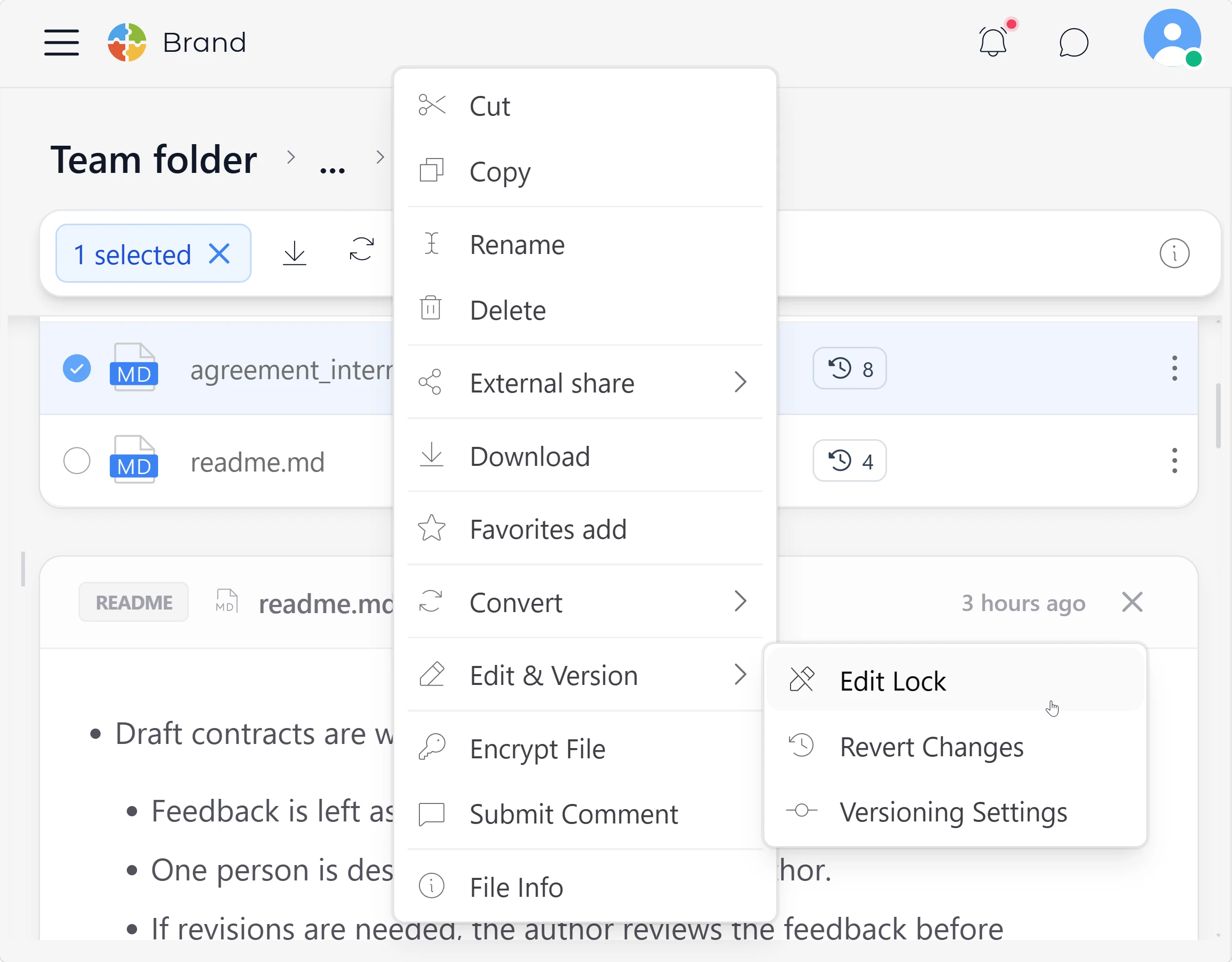
Lock important files
Prevent edits and deletion by locking files. Protect approved documents and final versions from accidental changes.
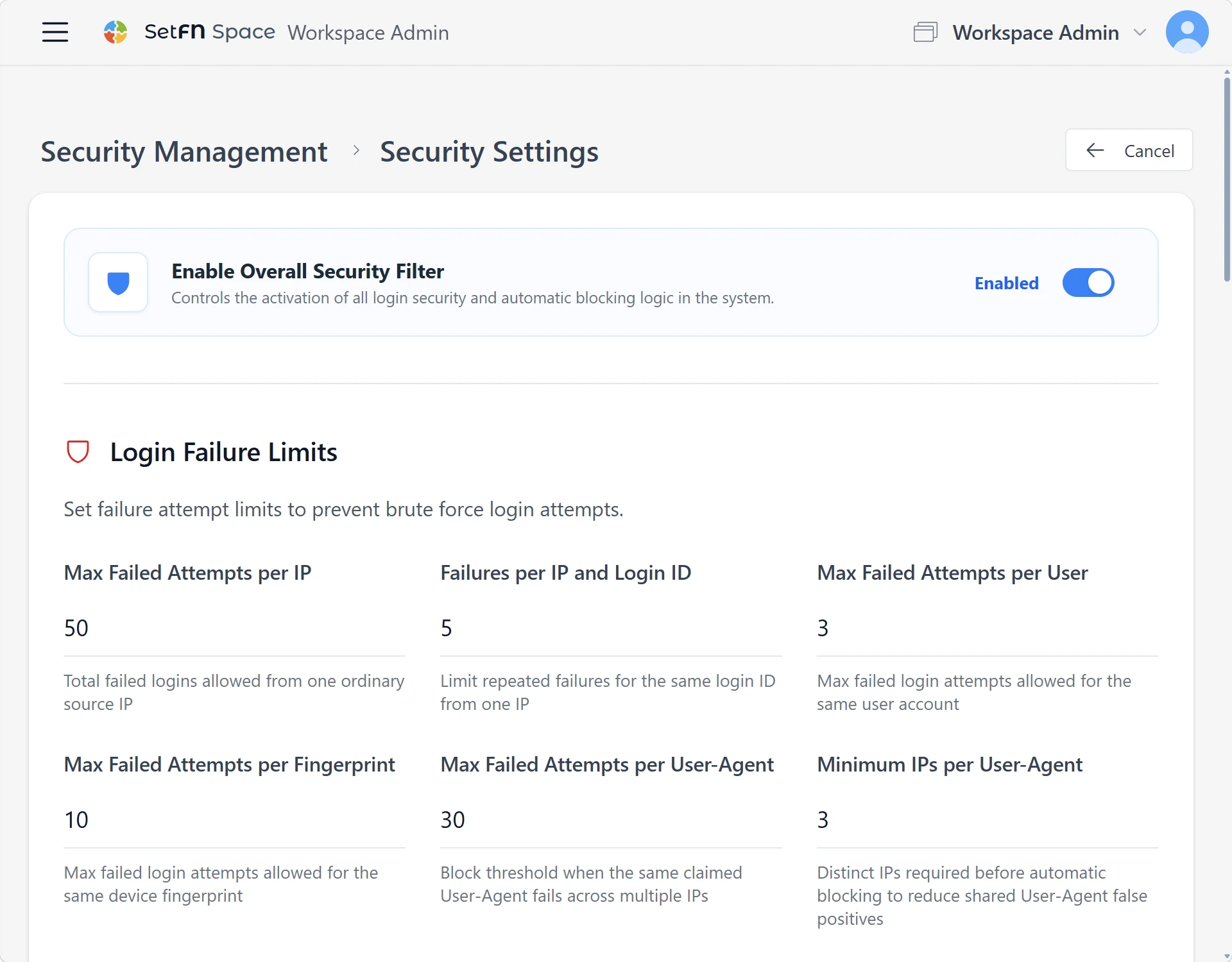
Automatic security controls
Configure pattern detection and rate limits to respond automatically to suspicious login attempts.
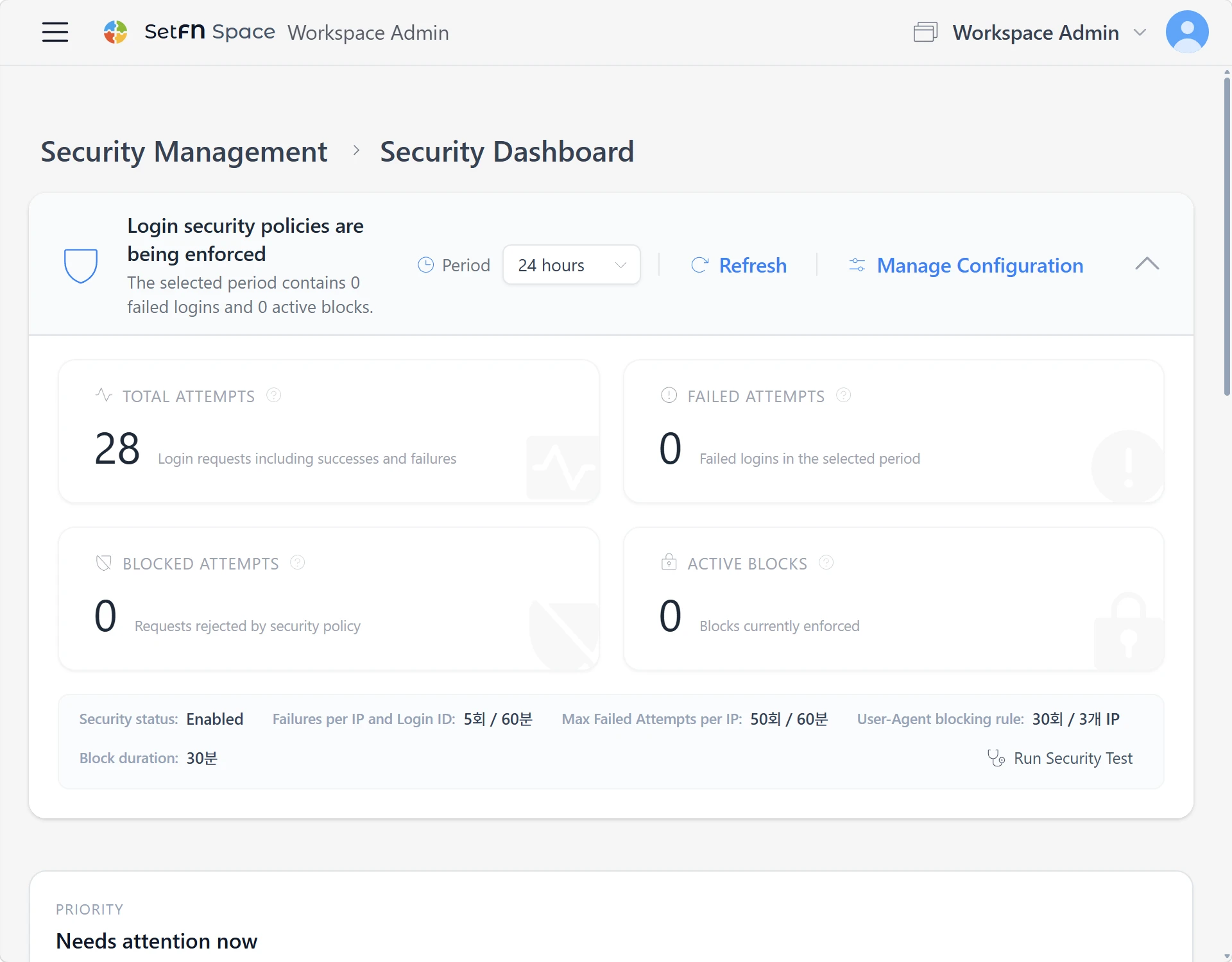
Automatic IP blocking
Detect repeated login failures and abnormal requests, then automatically block and manage suspicious IP addresses.
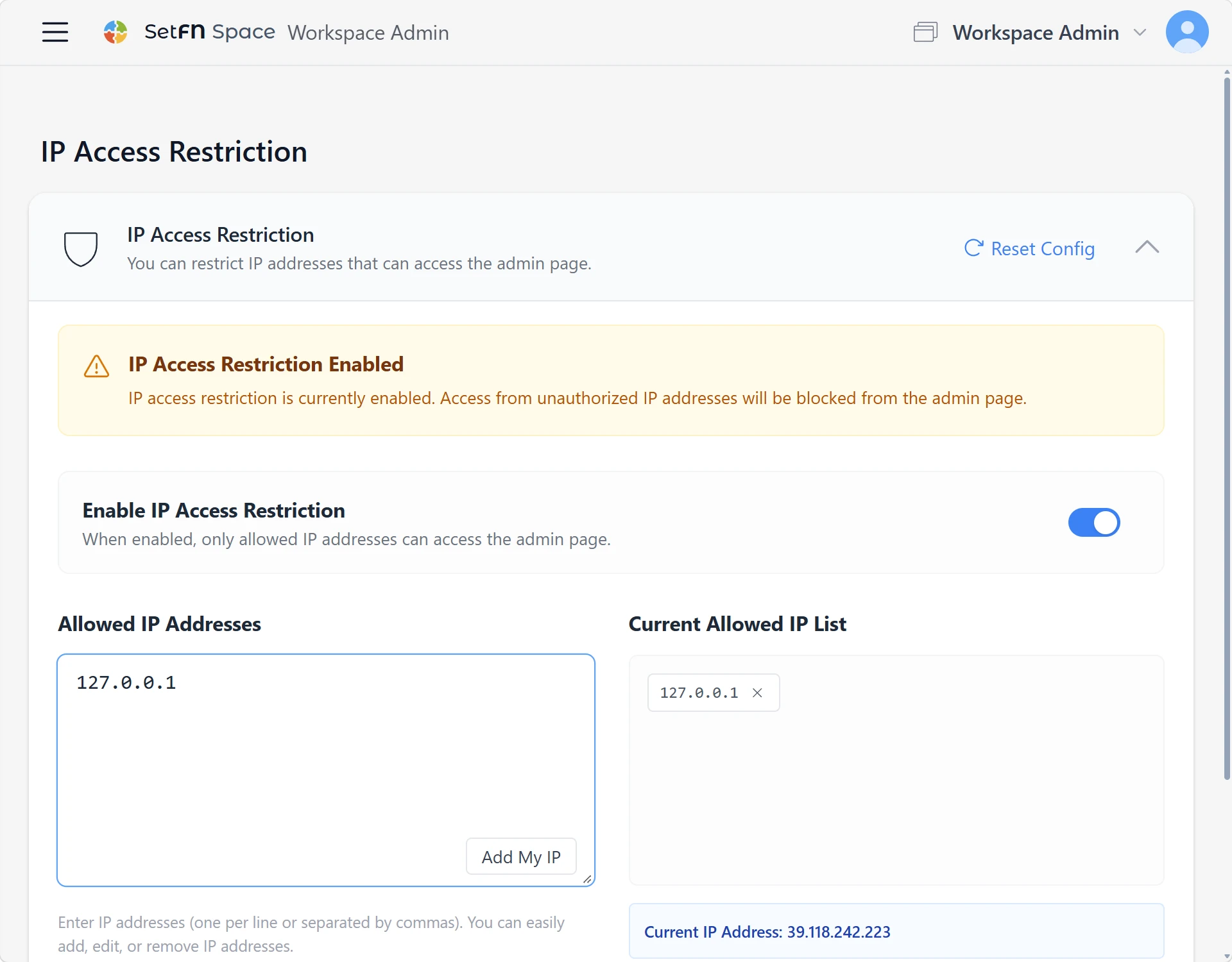
Restrict admin access by IP
Choose which IP addresses can reach the admin page and block access from others.
Collaboration tools
Keep comments, live editing, chat and approvals in one place. Separate conversations happening now from the records you will come back to later.
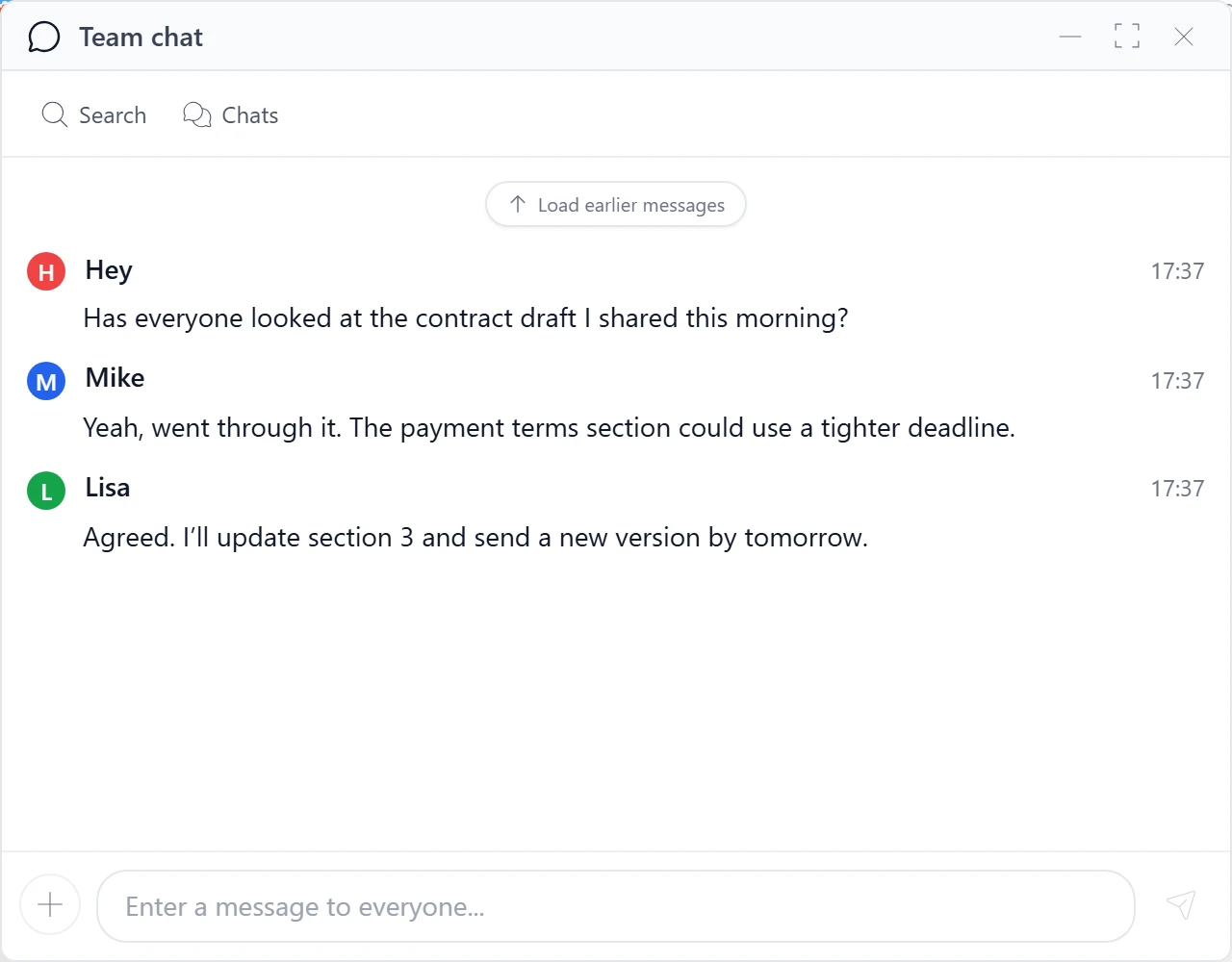
Team chat
Chat in real time with everyone, a group or one person. Bring AI into the conversation too.
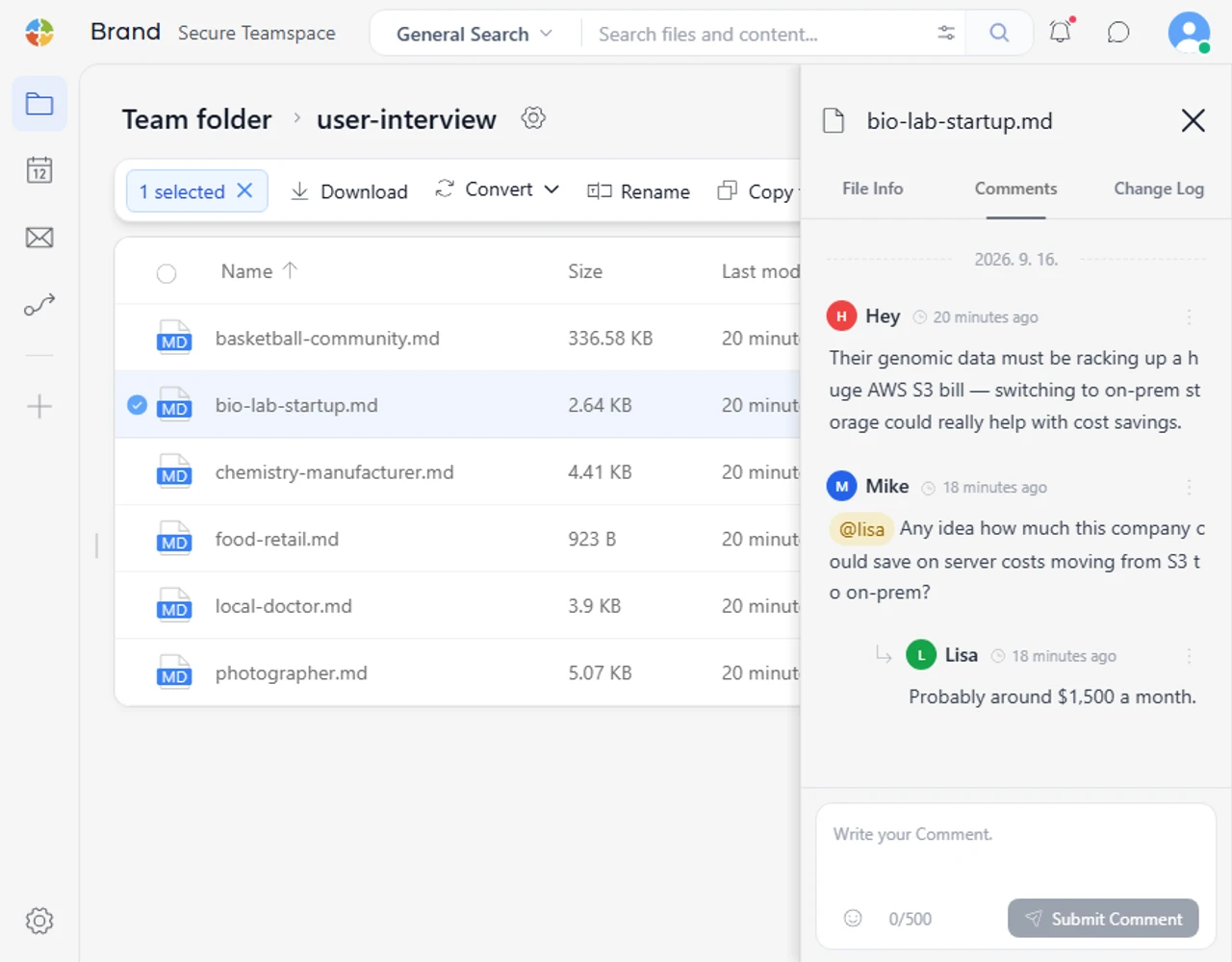
Comments on files and folders
Leave comments directly on a file or folder so the context stays with the work.
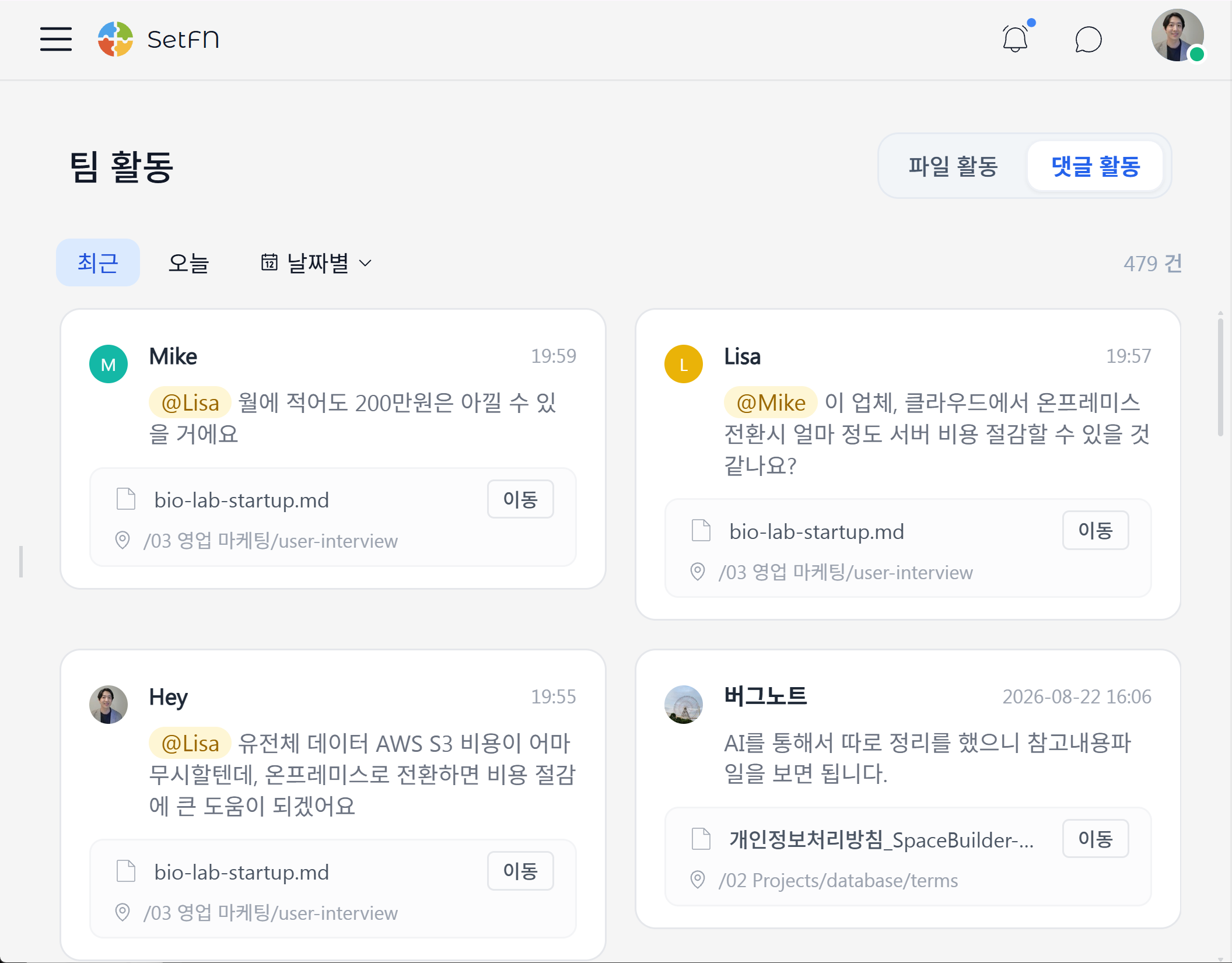
Catch up on comments
See team comments together with the author, time and file location. Jump straight to the conversation you need.
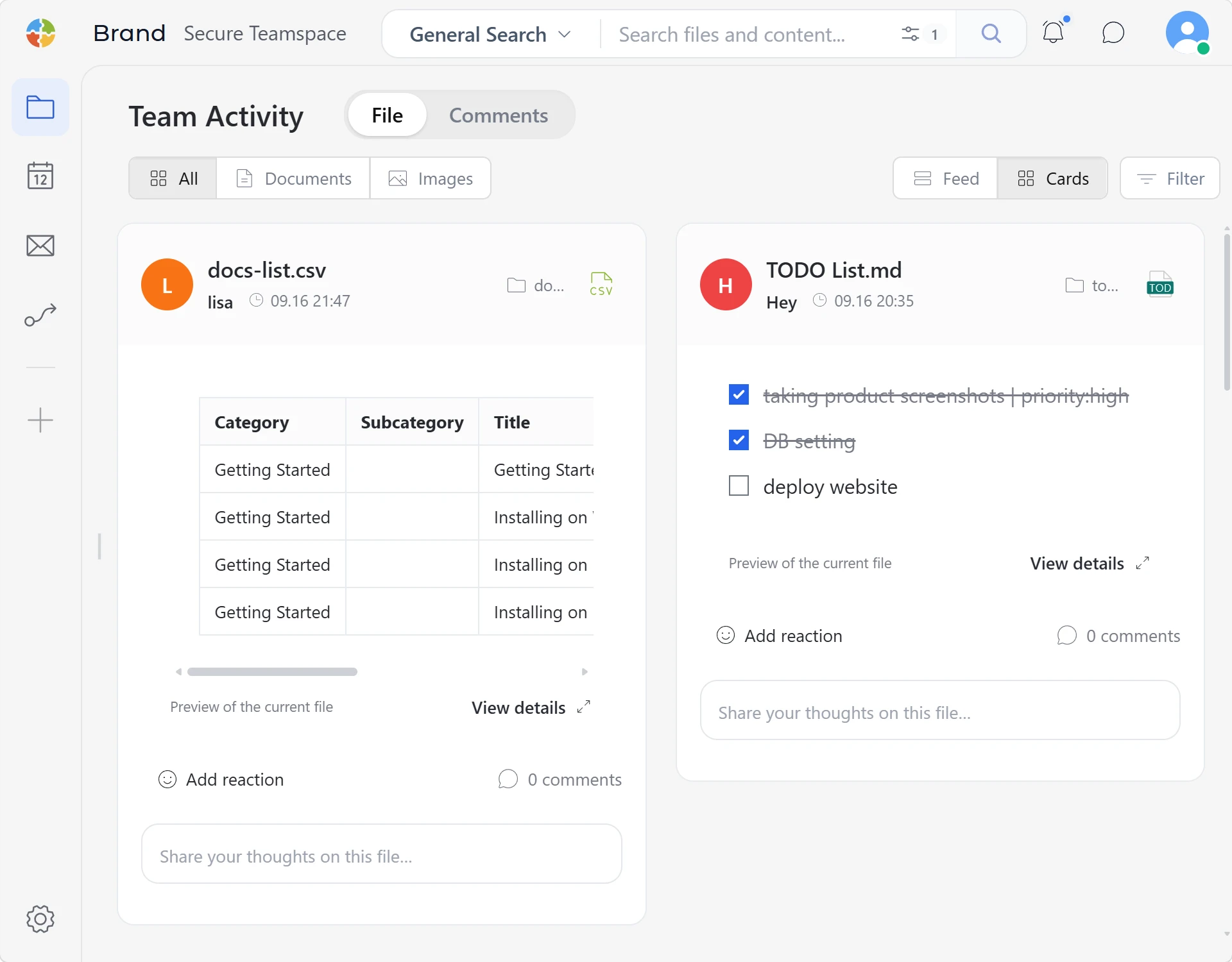
Follow file activity
See file creation, edits, moves and renames by user. Understand recent activity and how work has changed.
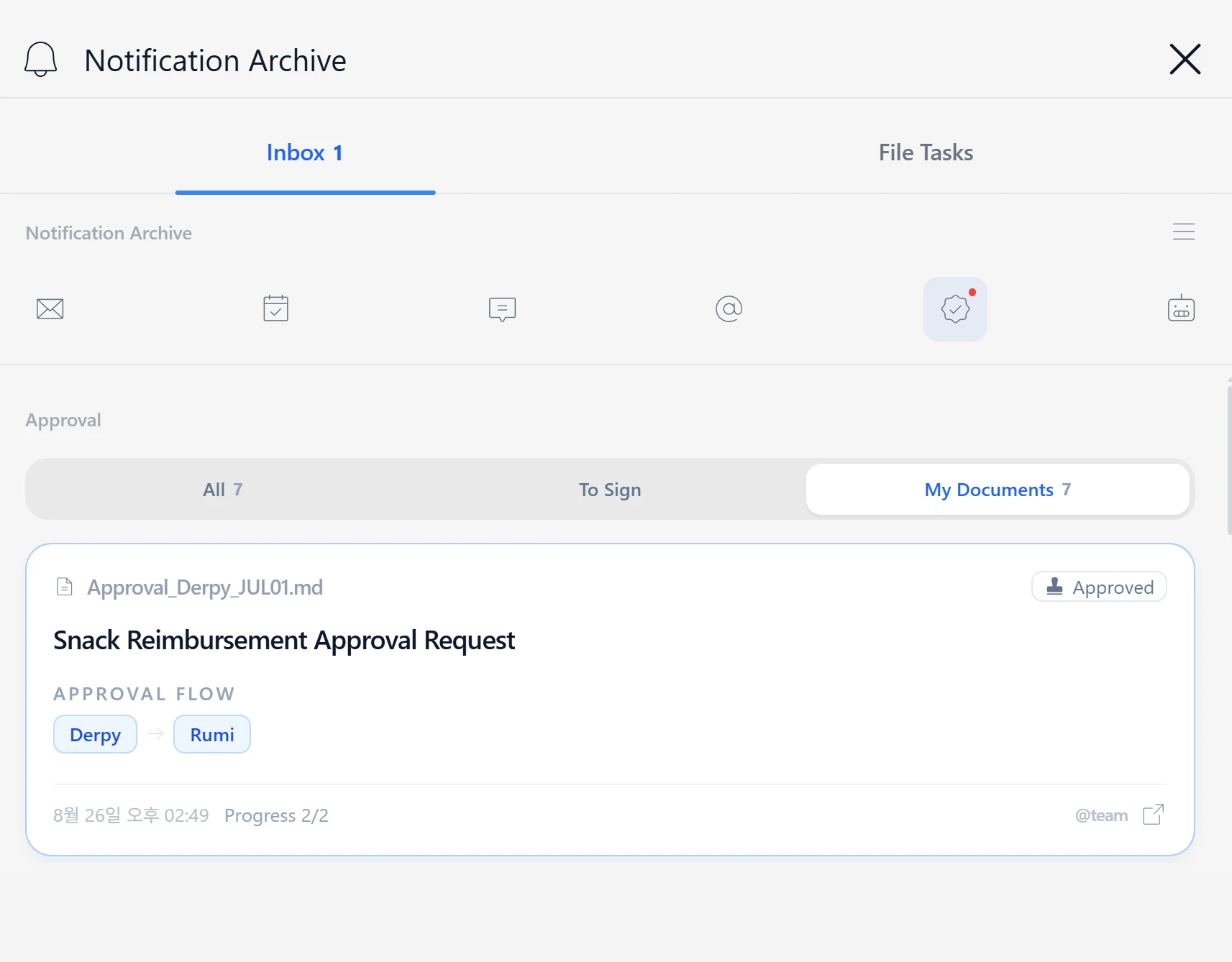
Mentions and notifications
Catch up on mentions and activity you missed in comments, chats and documents.
Approvals, built around files
Run reviews and approvals through files without introducing a complex ERP system.
File changes, reflected live
Keep everyone in the space up to date as files are created, edited or deleted.
Real-time mentions and alerts
Deliver file comments and mentions immediately so teammates can exchange feedback without leaving their work.
Go where your teammate is
See which file or folder a teammate is viewing and jump to the same location.
Local AI
Connect local models for work that must stay away from external AI providers. Search scope and data access follow your workspace settings.
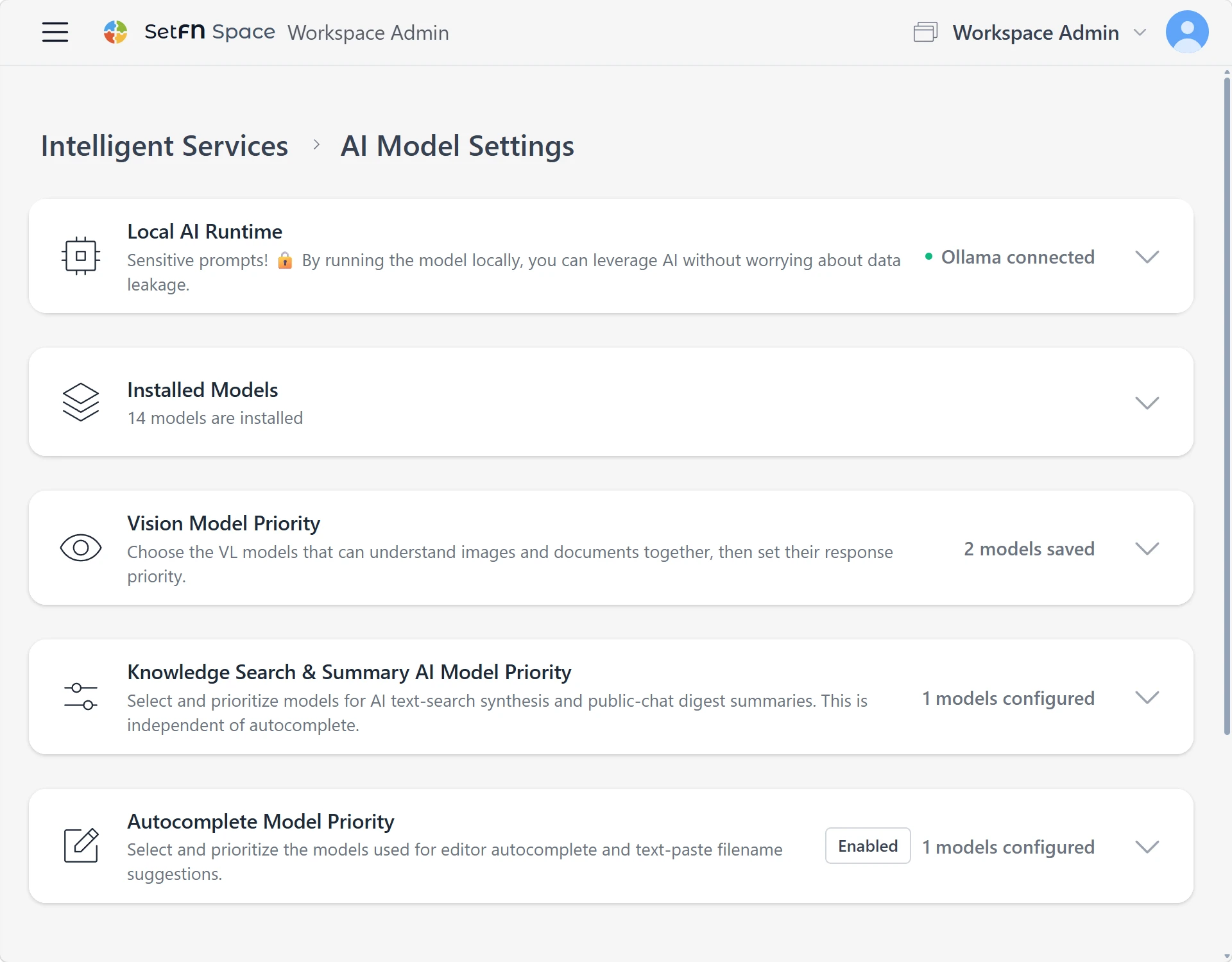
Run models locally
Run a local model on your own computer, server or GPU. Your files, chats and data stay out of external AI providers.
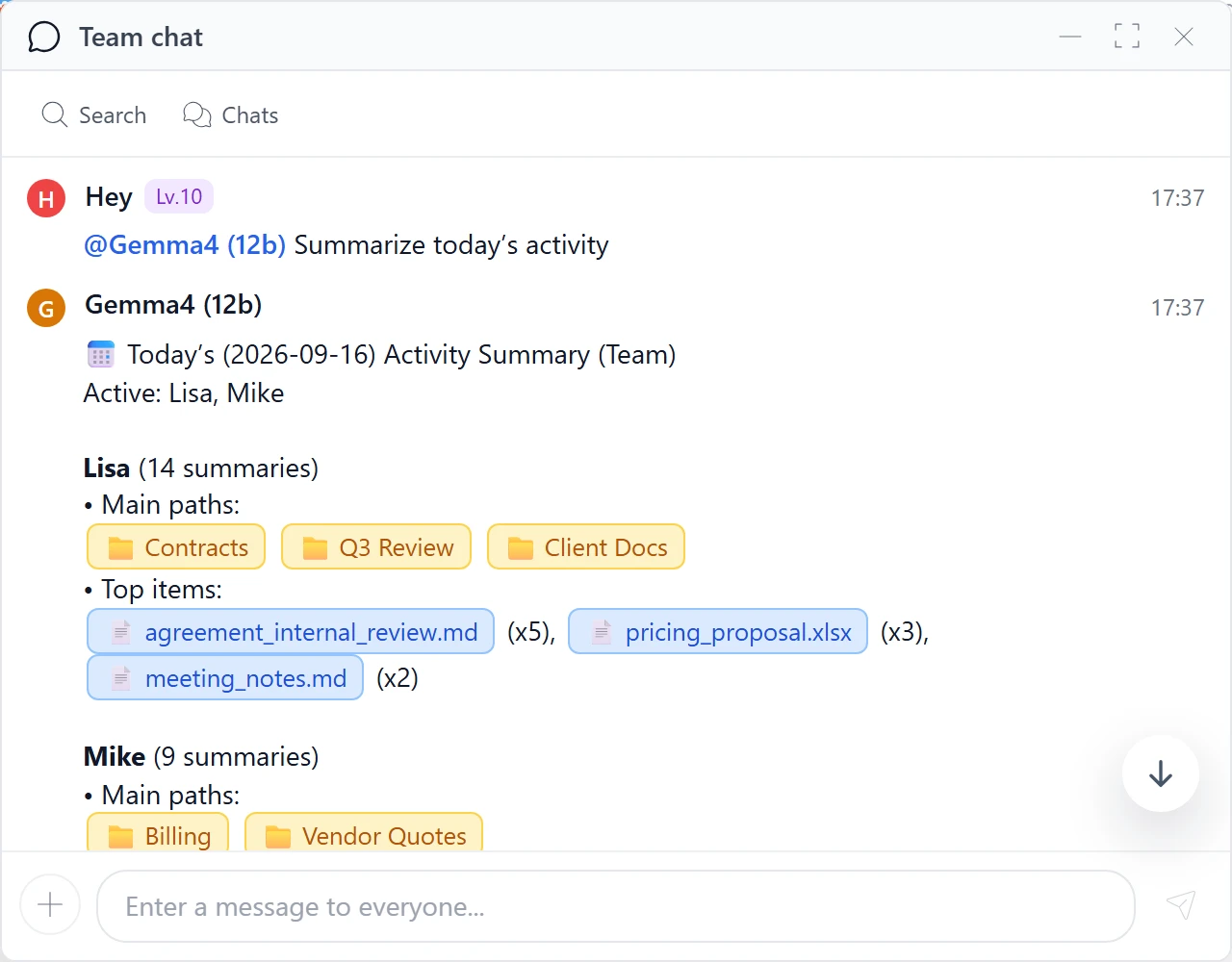
Catch up on your work
Let AI summarize your activity, including files and comments.
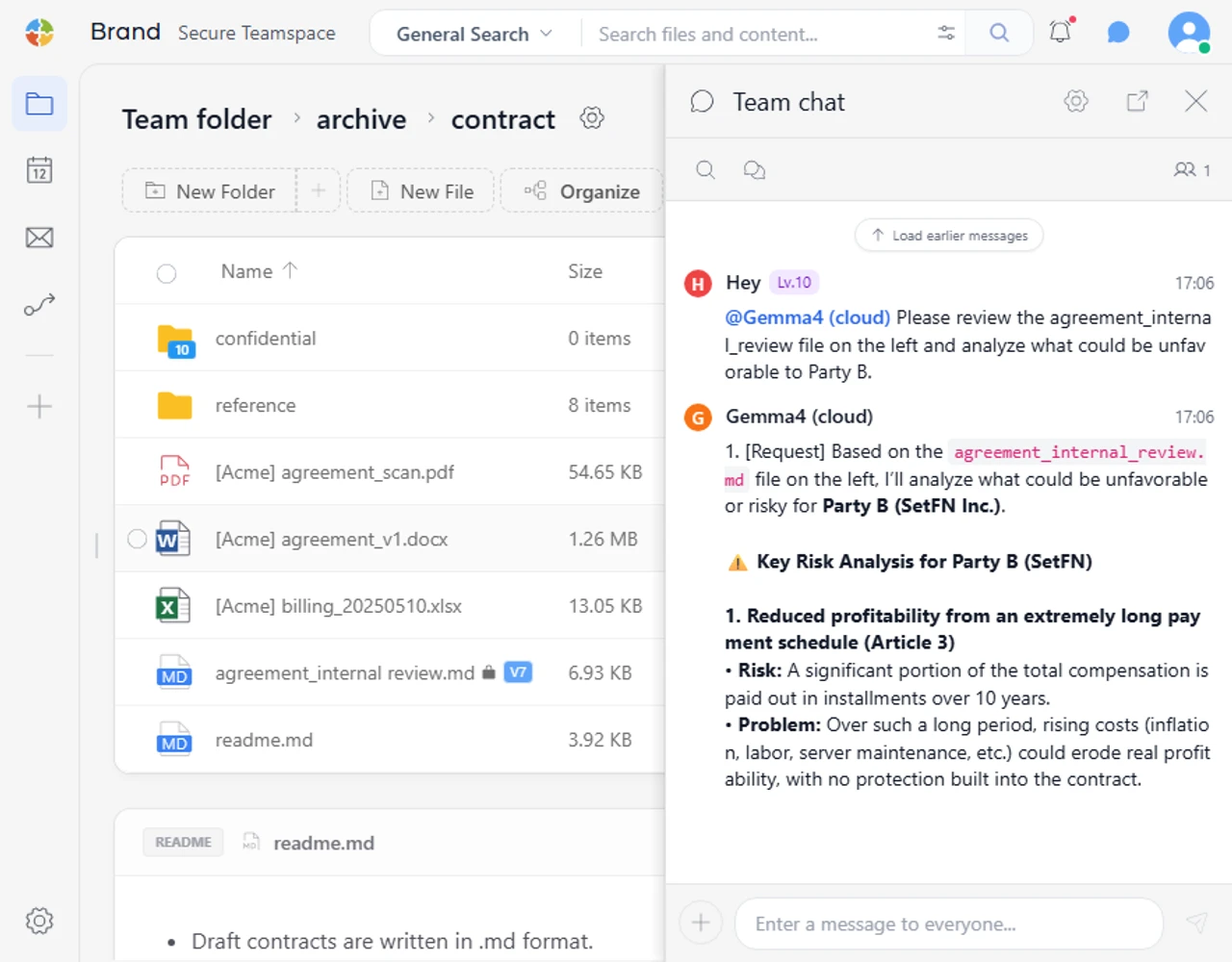
Analyze in the context of your folder
Talk to AI where your files are. It uses the context of the current folder and its contents to organize the information you need.
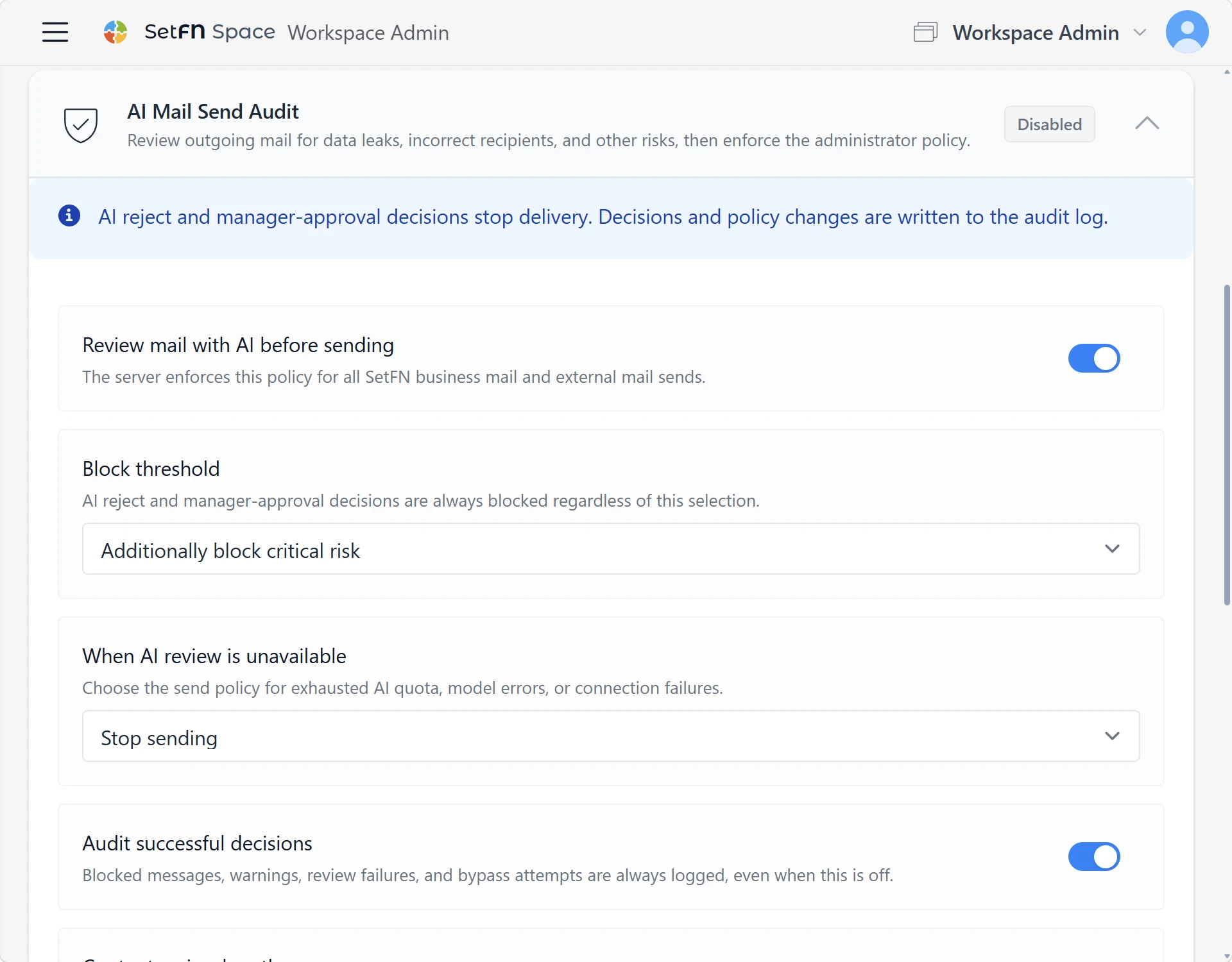
Check sensitive data before it leaves
Local AI screens outgoing content, such as email, for sensitive information first.
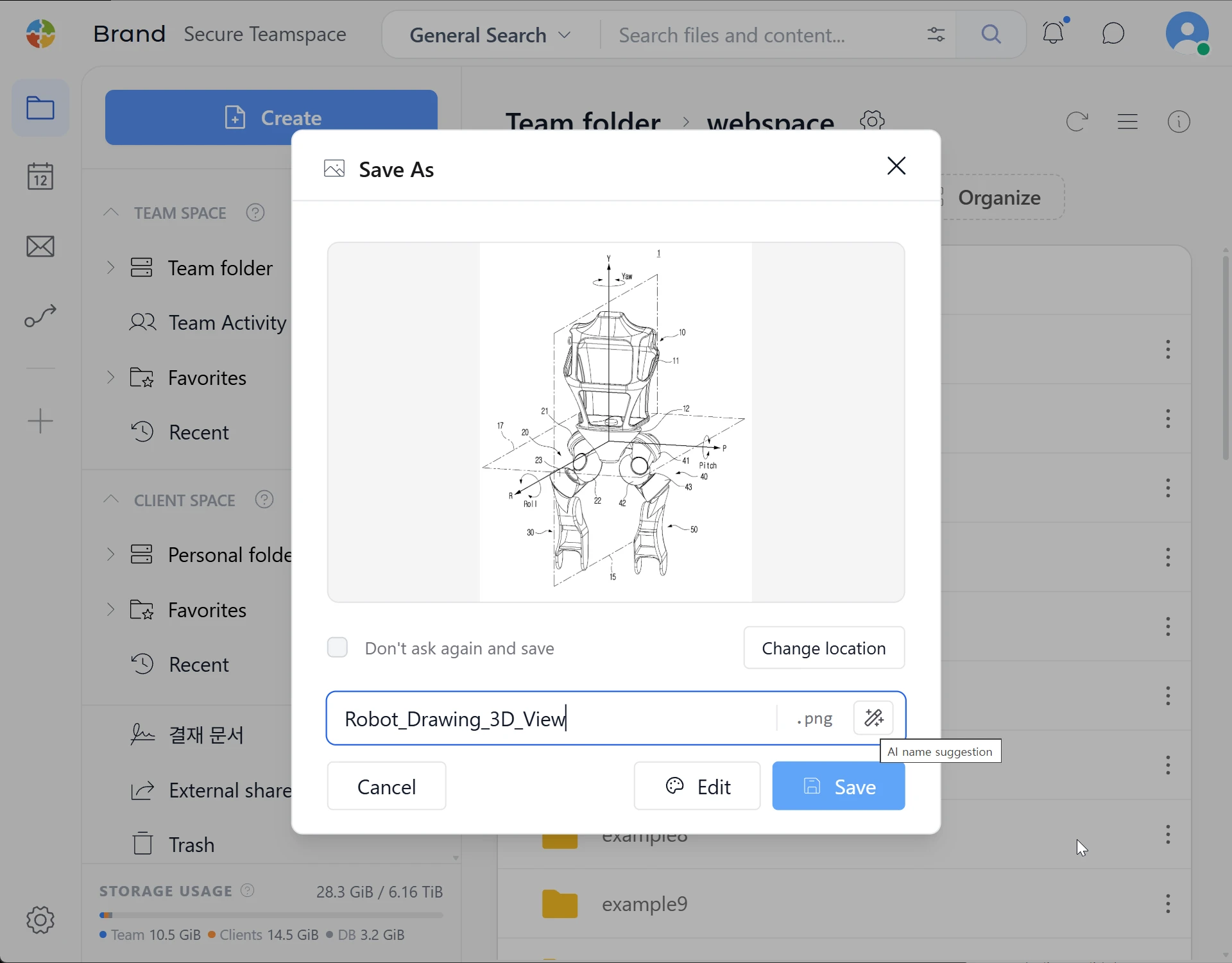
Suggested file names
Paste images, text, JSON, Markdown or code snippets and let AI suggest a name and format. Names you edit yourself are preserved.
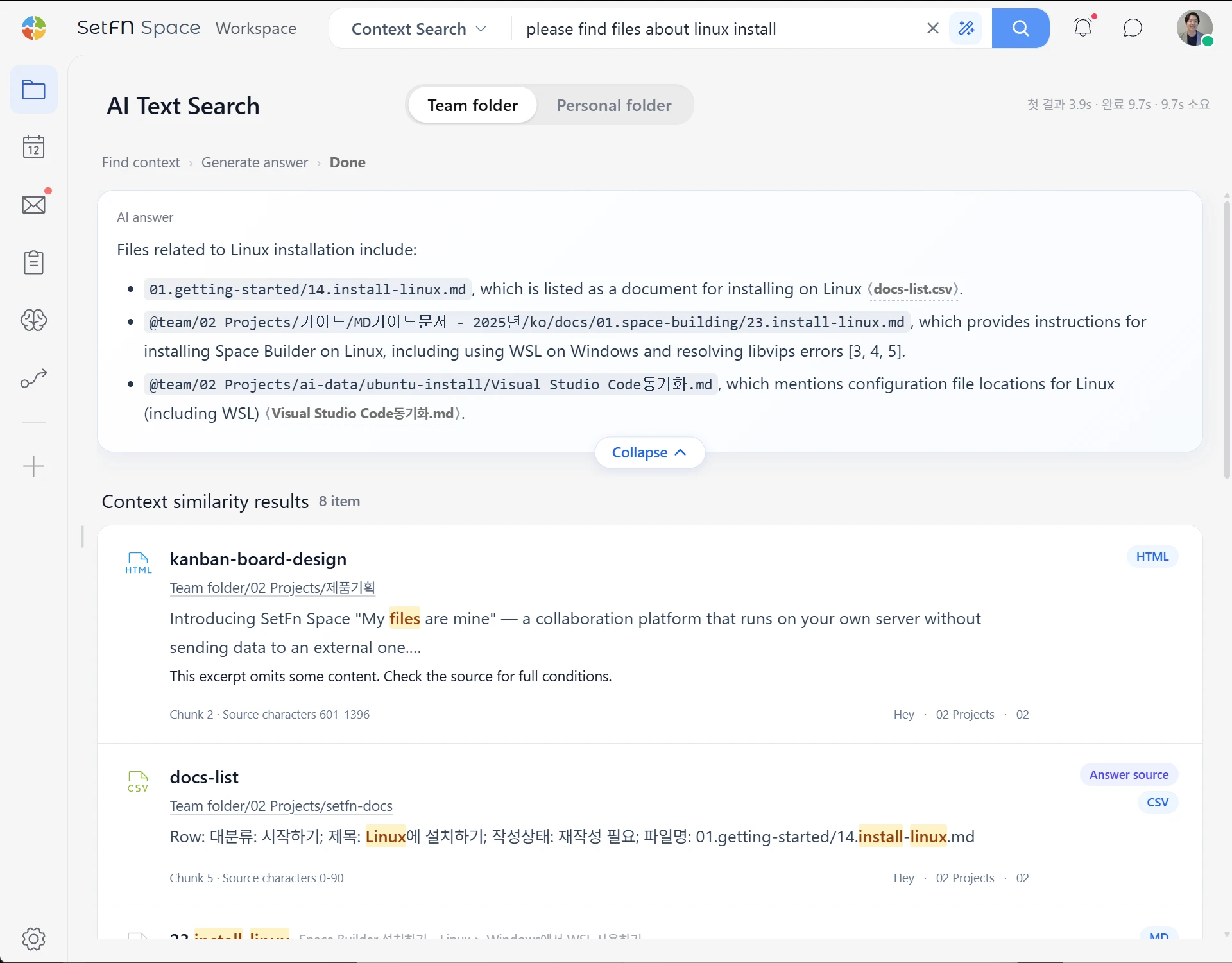
Search your company knowledge
Search file names, contents, emails and comments together. OCR for images, plus document chunking and tagging, lay the groundwork for search powered by AI.
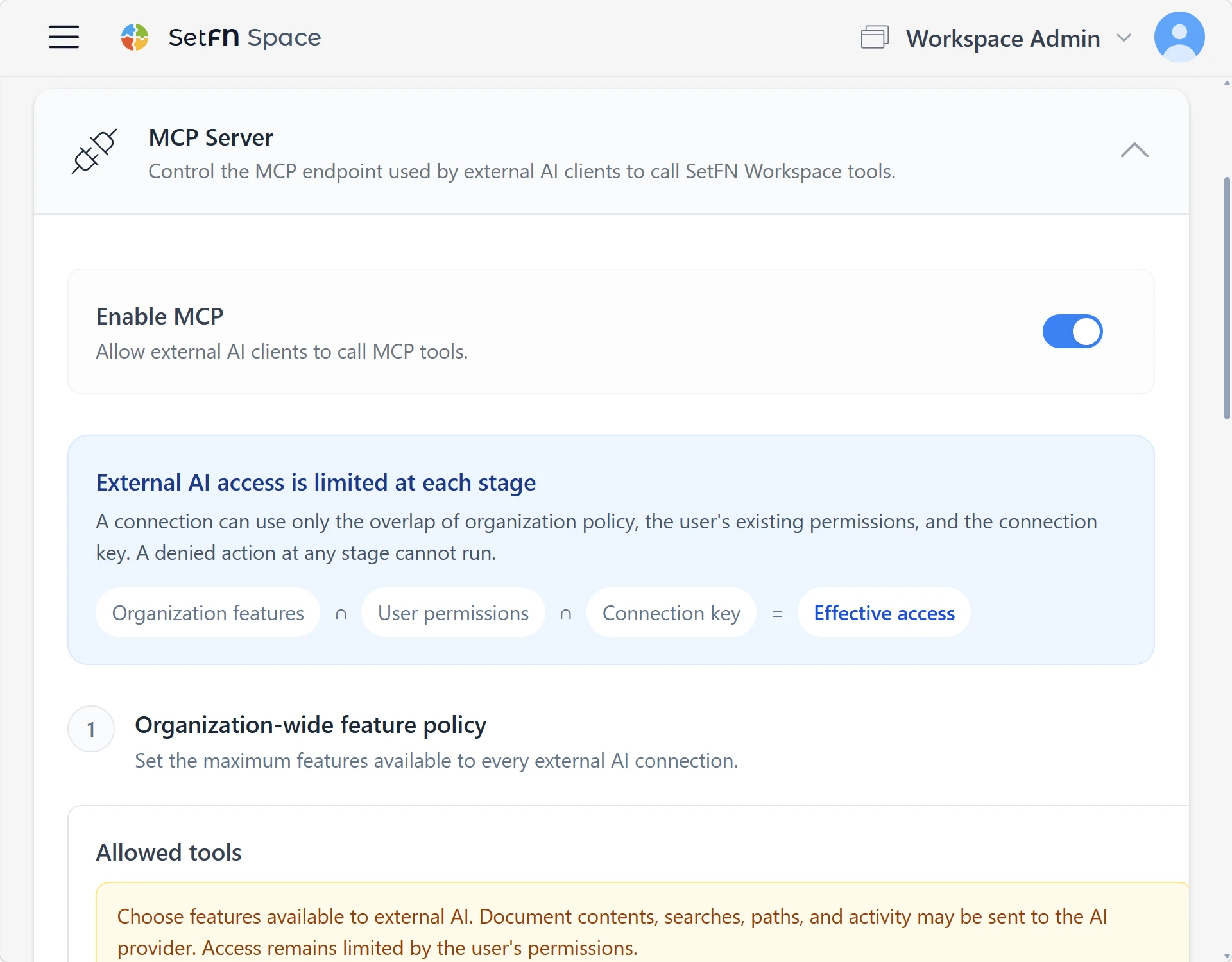
Connect external AI tools
Use MCP to connect to authorized external AI services and tools when needed. Administrators control permissions and what data can be sent.