
Who can see this file?
SETFN SECURITYKnow who accessed what.
Know who accessed what.
And when.
Manage users, permissions, access policies and system health where you host SpaceBuilder.
Encrypt sensitive documents and decide how AI and external services connect to your organization’s information.
As collaboration gets easier,
administrators need clearer answers.
Can external collaborators access only what they’re allowed to?
Who signed in, and when?
Are suspicious access attempts blocked?
What information can AI read?
Where are files and backups stored?
Find the answers in SetFN’s admin controls.
Protection beyond permissionsSensitive documents.
Sensitive documents.
Protected at the file level.
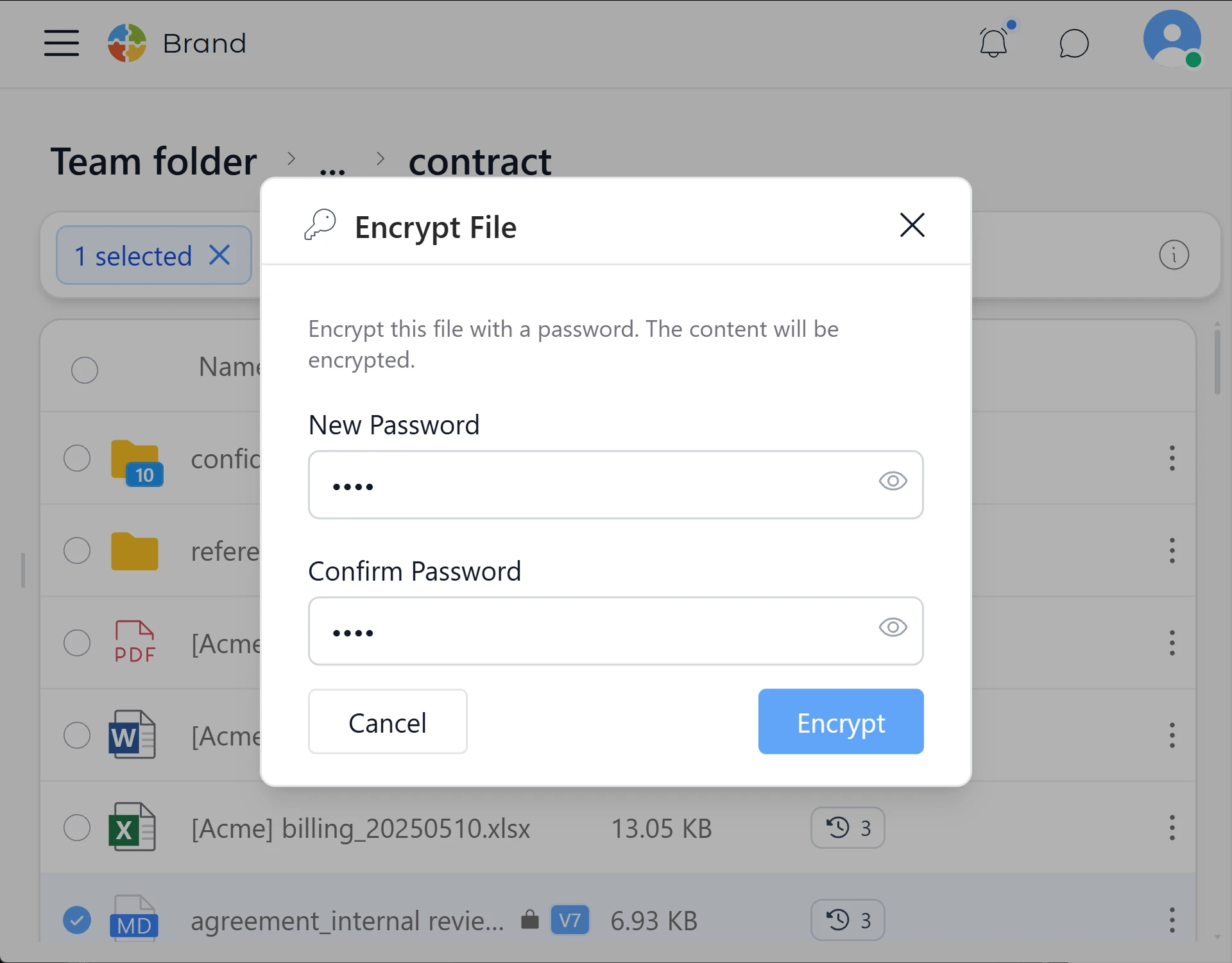
When folder permissions aren’t enough, encrypt a document’s full contents with a password. The encrypted content requires the correct password to decrypt and is excluded from search indexing and standard previews.
- Full-content AES-256-GCM encryption for Markdown documents
- Encryption keys derived from passwords using scrypt
- Encrypted documents excluded from indexing and standard previews
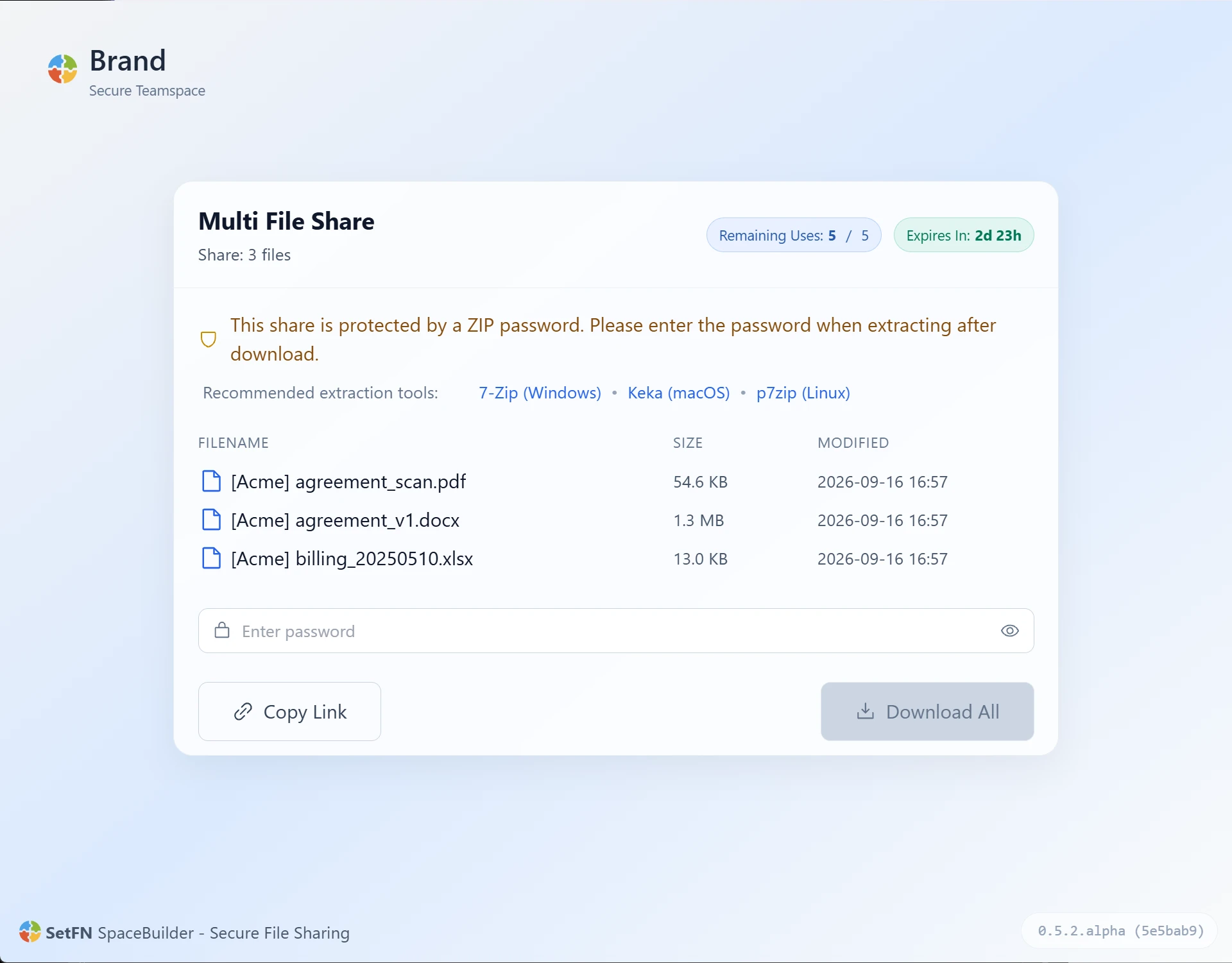
- Optional AES-256 encrypted ZIP files for shared downloads
See the controls
you’ll use every day.
Explore the actual admin screens for users, permissions, security policies, AI and system health.
What to check before you roll out.
Users, teams and levels
Go beyond adding users. Choose which spaces they can access based on their team, level and role.
File and folder permissions
People working in the same folder don’t all need the same permissions.
Access logs and security policies
Prevention is only part of security. Keep records that help you explain what happened.
AI policies
Administrators set the boundaries for what AI can read and use in its answers.
System operations
Self-hosting lets you choose where your data lives. Administrators should be able to keep track of that choice as the system runs.
File locking and encryption
Add password protection to sensitive documents and shared downloads, alongside access controls.
SetFN
Maintained over timeSecurity doesn’t end
Security doesn’t end
on launch day.
Deployment environments, threats, browsers and dependencies keep changing.
SetFN tests permissions, session handling, encrypted-file compatibility and service health, and carries those findings into ongoing updates.
Check that access boundaries hold when files are viewed, edited, moved or shared, and when AI tools run.
Refine concurrent sessions, token refresh limits and failed-login handling for day-to-day operation.
Check that encrypted documents and locked files aren’t exposed through previews, search or version history.
Use service health, audit records and rotating logs to identify issues and inform the next update.
Protect it on your terms.
Keep improving as things change.
Choose where data is stored, who can access it, how files are protected and what AI can do.
Issues found in operation are tested and addressed in subsequent updates.